















Feb 4, 2025
IQOS ILUMA Blinking Red Light: Meaning and Fix
Is your IQOS ILUMA blinking red?
Your device software might need a RESET
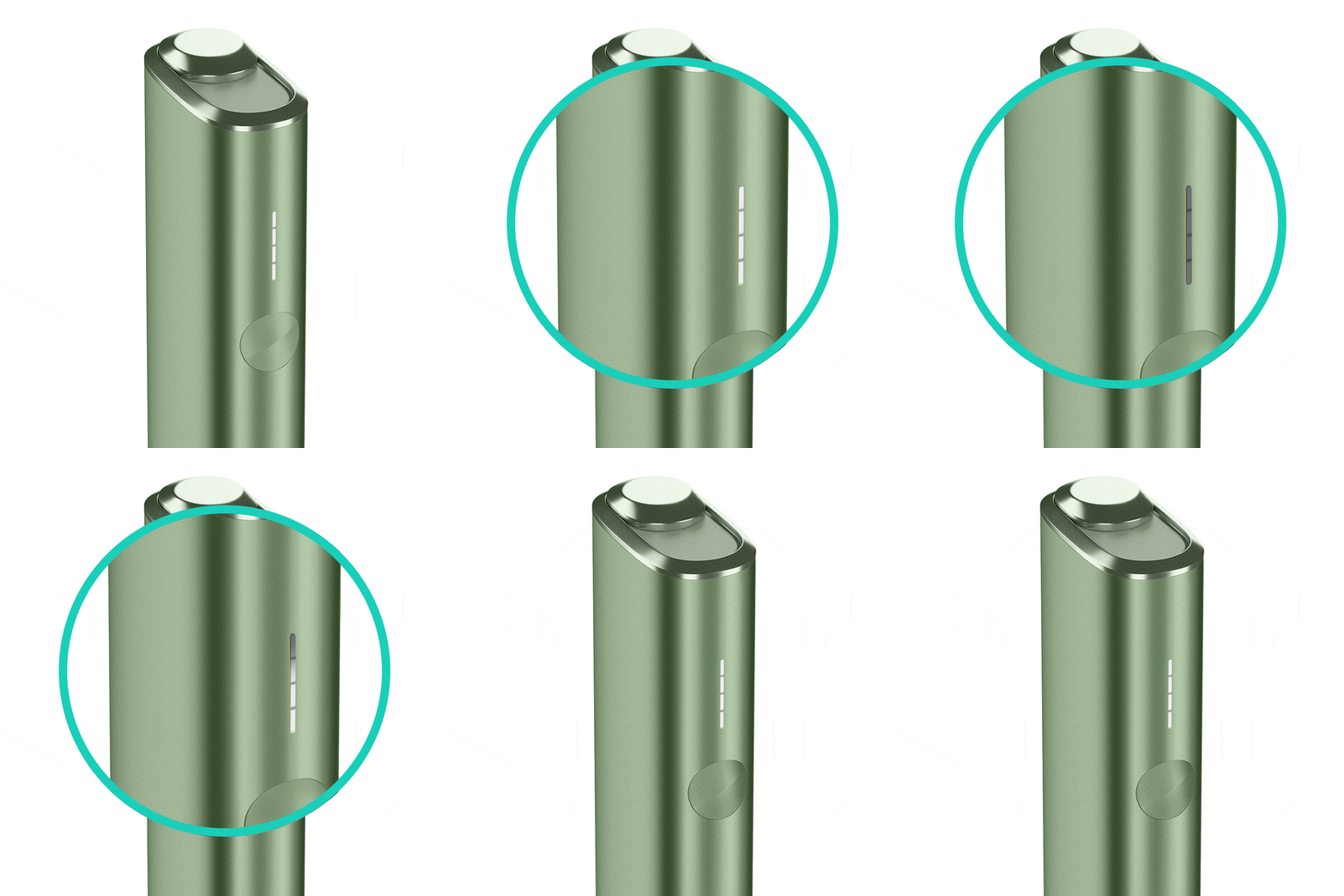
Let's Perform a RESET:
- Press and hold down the ON/OFF button on the device for 10 seconds until status lights fade out.
- Please note: If your IQOS ILUMA is turned OFF at the time of RESET; when pressing the button, after the first 4 seconds, the device will turn ON: lights will fade in and the device will vibrate. In order to perform the RESET correctly, it is important to keep the button continuously pressed for 10 seconds.
- RESET is confirmed when status lights fade in again and the device vibrates.
- Please note, proximity to a magnet can affect the device calibration and cause the blinking red light. Do not place the device against a magnet during the experience.
If the device is now working, the issue is resolved. If the issue continues, proceed to the next troubleshooting step below.
IQOS ILUMA Holder
Your holder’s software might need a reset
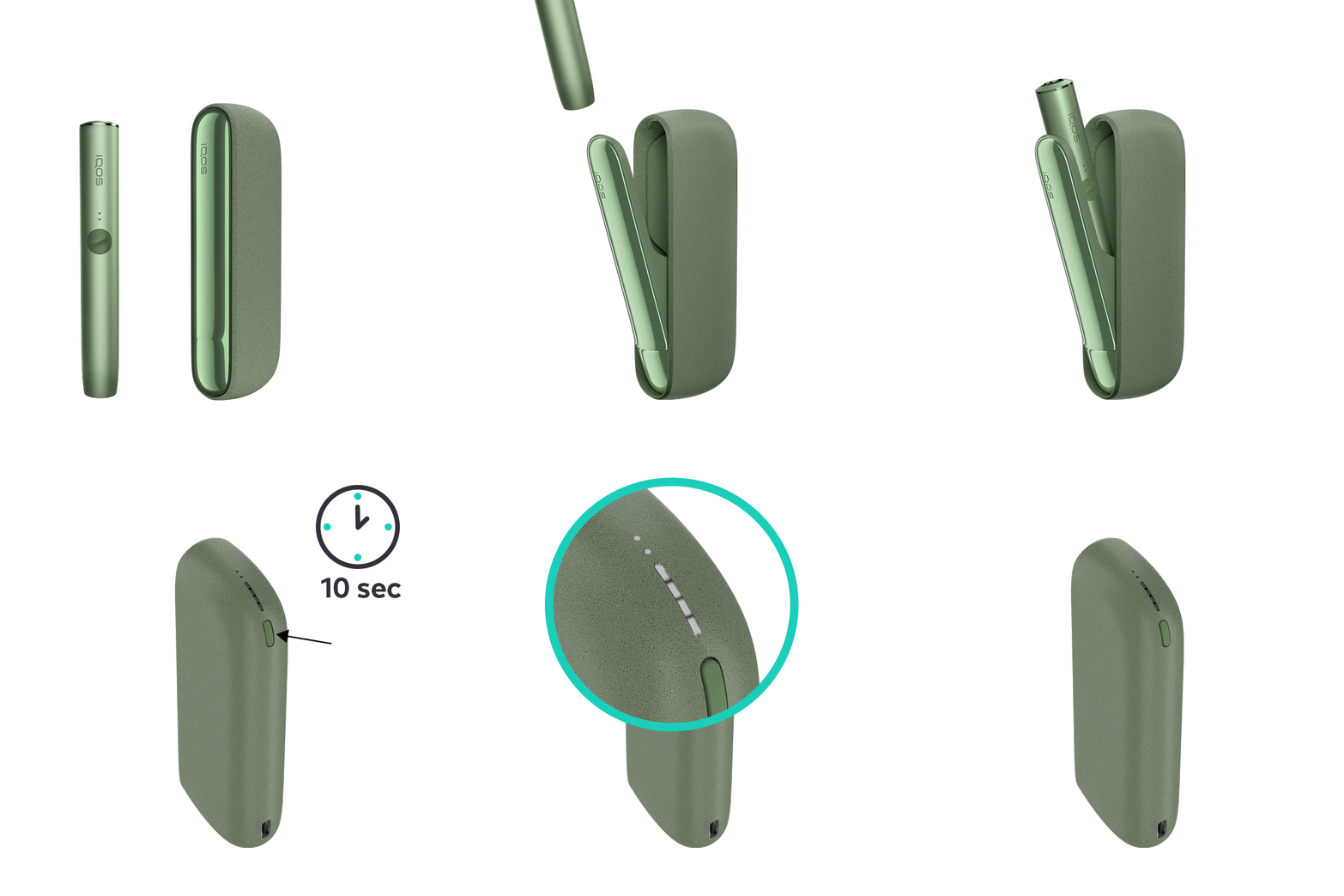
Let's Perform a RESET:
- Place the holder in the Pocket Charger. Ensure to place it correctly.
- Press and hold down the ON/OFF button on the Pocket Charger for 10 seconds until status lights fade out.
- Please note: If your IQOS ILUMA is turned OFF at the time of RESET; when pressing the button, after the first 4 seconds, the device will turn ON: lights will fade in and the device will vibrate. In order to perform the RESET correctly, it is important to keep the button continuously pressed for 10 seconds.
- RESET is confirmed when status lights fade in again and the device vibrates.
- Ensure a magnet has not been placed near the end of the Holder where the stick is inserted. The holder shouldn’t be placed against the PC during an experience as the PC contains a magnet. Proximity to a magnet can affect the device calibration and activate a red light error.
If the device is now working, the issue is resolved. If the issue continues, proceed to the next troubleshooting step below.
The firmware update may have failed
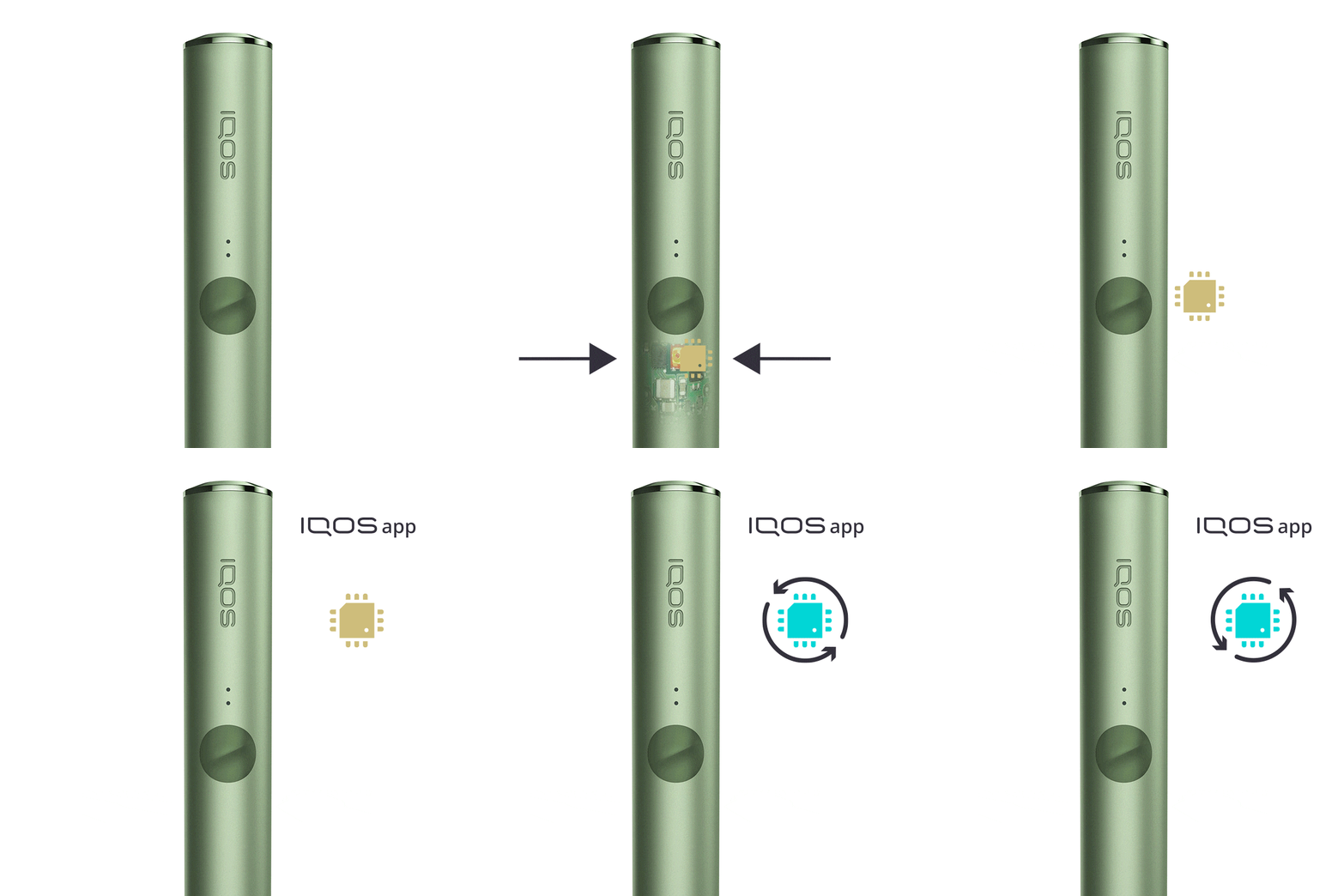
A failed firmware update can cause blinking red light. Please, try updating your firmware again.
- As every electronic device, IQOS is also built from two core elements – physical device items and the digital working instructions, called as firmware.
- Firmware of your holder and pocket charger can be regularly updated for maintenance and improvement of your device performance.
- Firmware update can be done through IQOS App or visiting an IQOS Store.
- IQOS App is available both for desktop and mobile devices
If the device works after the firmware update, the issue is resolved. If it still does not work, see Accidental Damage below. If you did not attempt a firmware update, see Accidental Damage below.
IQOS ILUMA PRIME Holder
Your holder’s software might need a reset
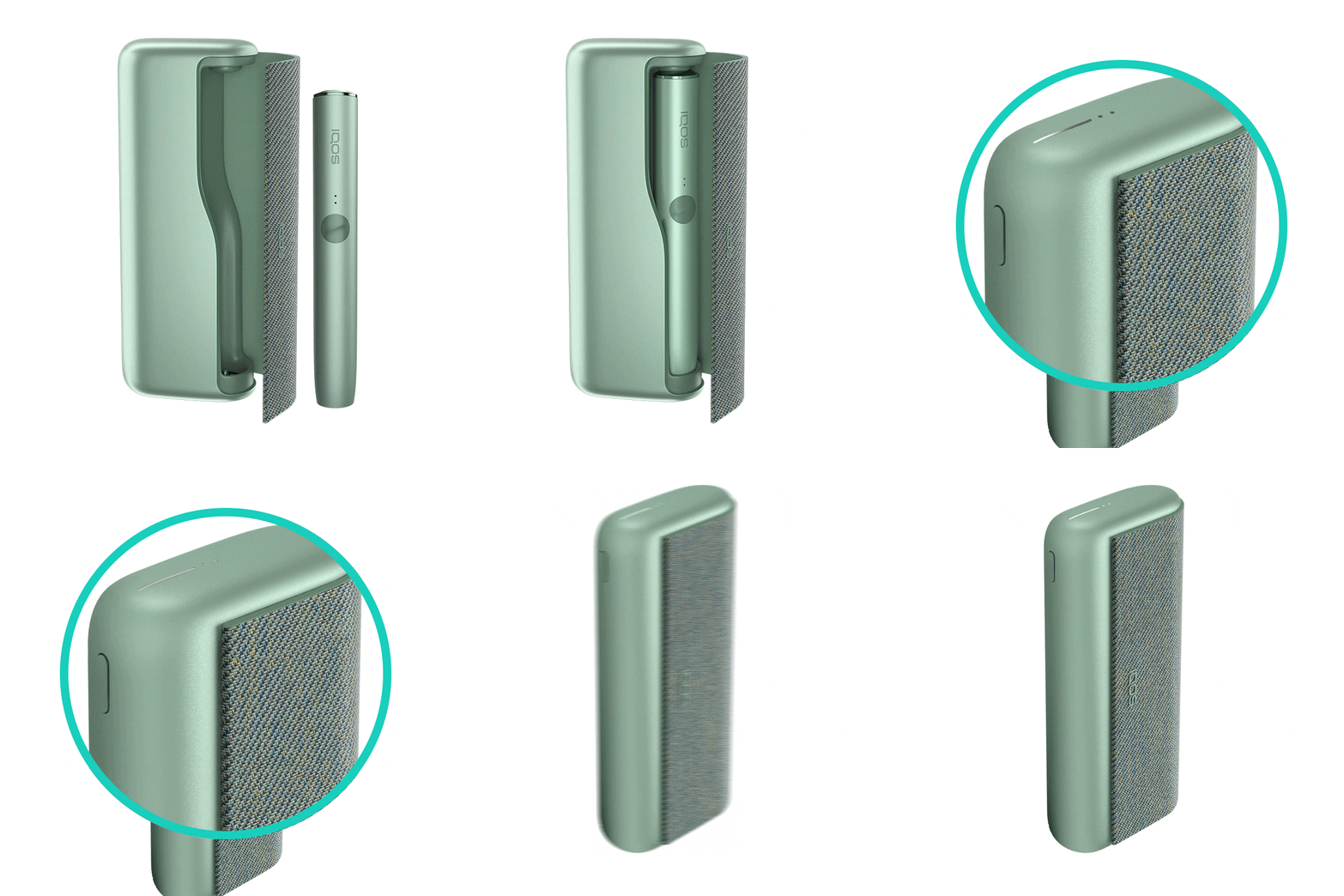
Let's Perform a RESET:
- Place the holder in the Pocket Charger. Ensure to place it correctly.
- Press and hold down the ON/OFF button on the Pocket Charger for 10 seconds until status lights fade out:
- Please note: If your IQOS ILUMA is turned OFF at the time of RESET; when pressing the button, after the first 4 seconds, the device will turn ON: lights will fade in and the device will vibrate. In order to perform the RESET correctly, it is important to keep the button continuously pressed for 10 seconds.
- RESET is confirmed when status lights fade in again and the device vibrates:
- Ensure a magnet has not been placed near the end of the Holder where the stick is inserted. The holder shouldn’t be placed against the PC during an experience as the PC contains a magnet. Proximity to a magnet can affect the device calibration and activate a red light error.
If the device is now working, the issue is resolved. If the issue continues, proceed to the next troubleshooting step below.
The firmware update may have failed
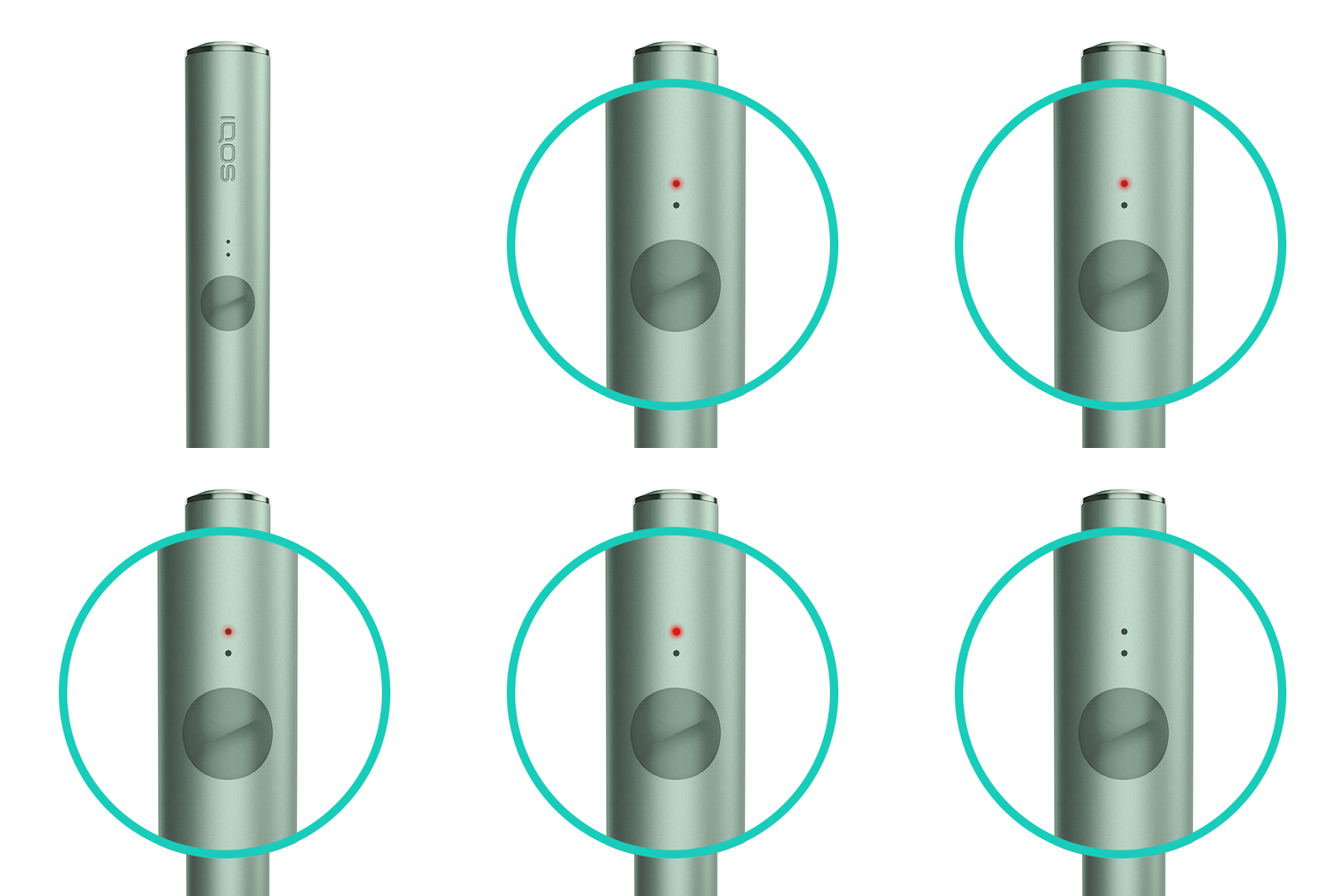
A failed firmware update can cause blinking red light. Please, try updating your firmware again:
- As every electronic device, IQOS is also built from two core elements – physical device items and the digital working instructions, called as firmware.
- Firmware of your holder and pocket charger can be regularly updated for maintenance and improvement of your device performance.
- Firmware update can be done through IQOS App or visiting an IQOS Store
- IQOS App is available both for desktop and mobile devices
If the device works after the firmware update, the issue is resolved. If it still does not work, see Accidental Damage below. If you did not attempt a firmware update, see Accidental Damage below.
If your device is eligible, we will place a replacement order for you!
If the issue is resolved
Congratulations! We are happy that you can now continue enjoying IQOS.
- If you need any further support on your device, you can also visit our FAQs
- We are frequently introducing new product and accessories. See what's new by visiting our online store or at one of physical locations