














Feb 4, 2025
IQOS ILUMA Not Heating Automatically: How to Fix It
Is your IQOS ILUMA not heating automatically?
The AutoStart function might have been deactivated from IQOS App
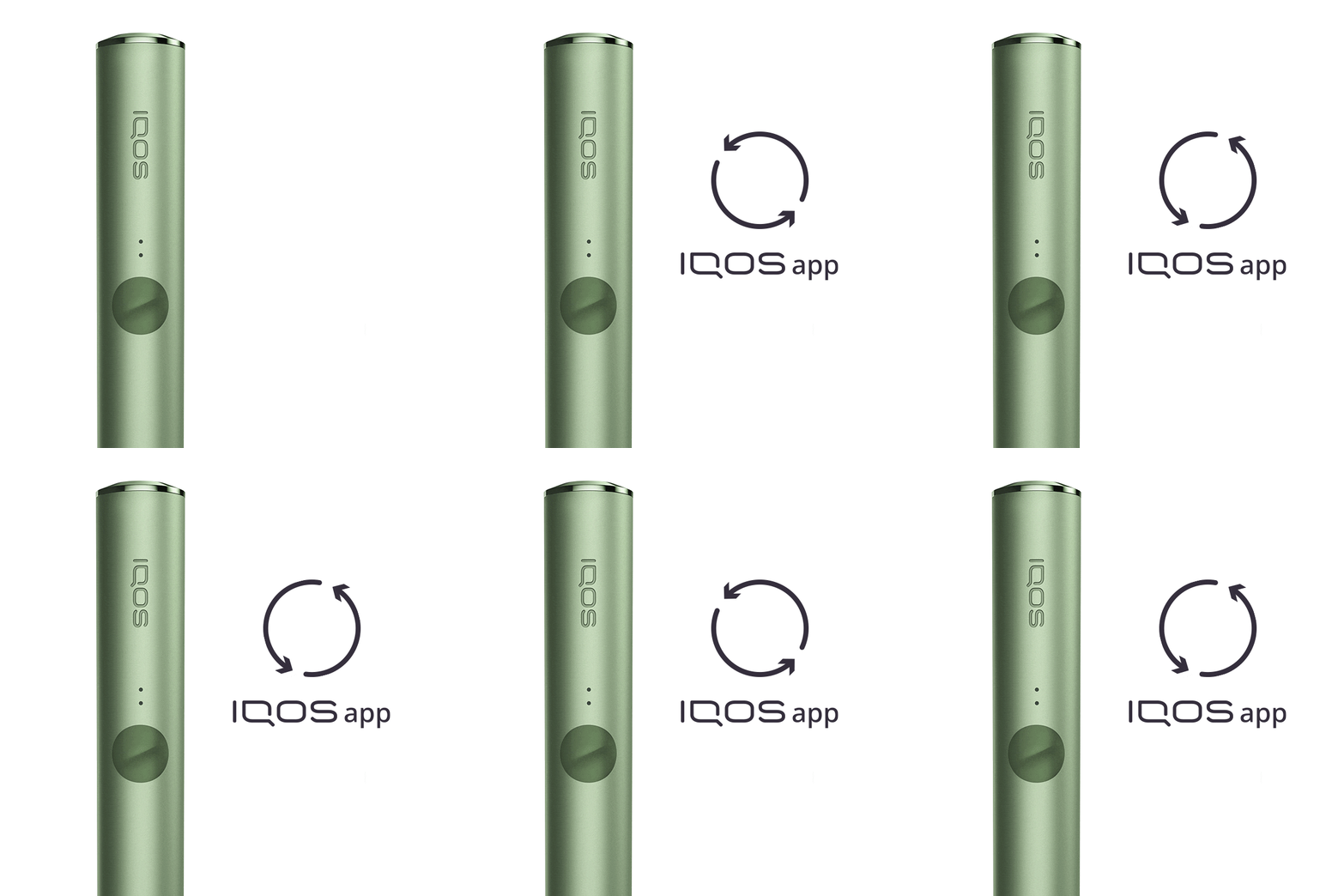
If the device is now working, the issue is resolved. If the issue continues, proceed to the next troubleshooting step below.
Connect to the IQOS App
- Make sure your device is connected to the IQOS App: Before performing connection steps, please;
- Make sure both Charger and Holder are registered on your profile on iqos.com.
- If you are using web app, clear your cache in the browser.
- Make sure your holder is inside the pocket charger before performing a Bluetooth connection.
- Let’s follow these few steps to connect your mobile device to the IQOS App:
- Remove all devices, not only IQOS, from the Bluetooth settings of the respective end device.
- Turn OFF Bluetooth on the phone/PC.
- Turn ON back Bluetooth on the phone/PC again.
- Turn OFF your IQOS and turn it ON again by pressing the pocket charger button for 4 seconds. This will instantly reactivate Bluetooth of your IQOS device.
- Log in to IQOS App again and follow the shown steps.
- Ensure that only one IQOS device is connected via Bluetooth.
- If you are using an iOS device, make sure you launch the IQOS app using the Bluefy browser.
- If this does not work, try pairing your IQOS via USB cable on Mac or PC.
- From the IQOS App, ensure that the AutoStart function hasn’t been de-activated: AutoStart is always activated by default on a new device.
Did this advice solve the issue? If the issue continues, proceed to the next troubleshooting step below.
Ensure you are using the right TEREA stick consumable
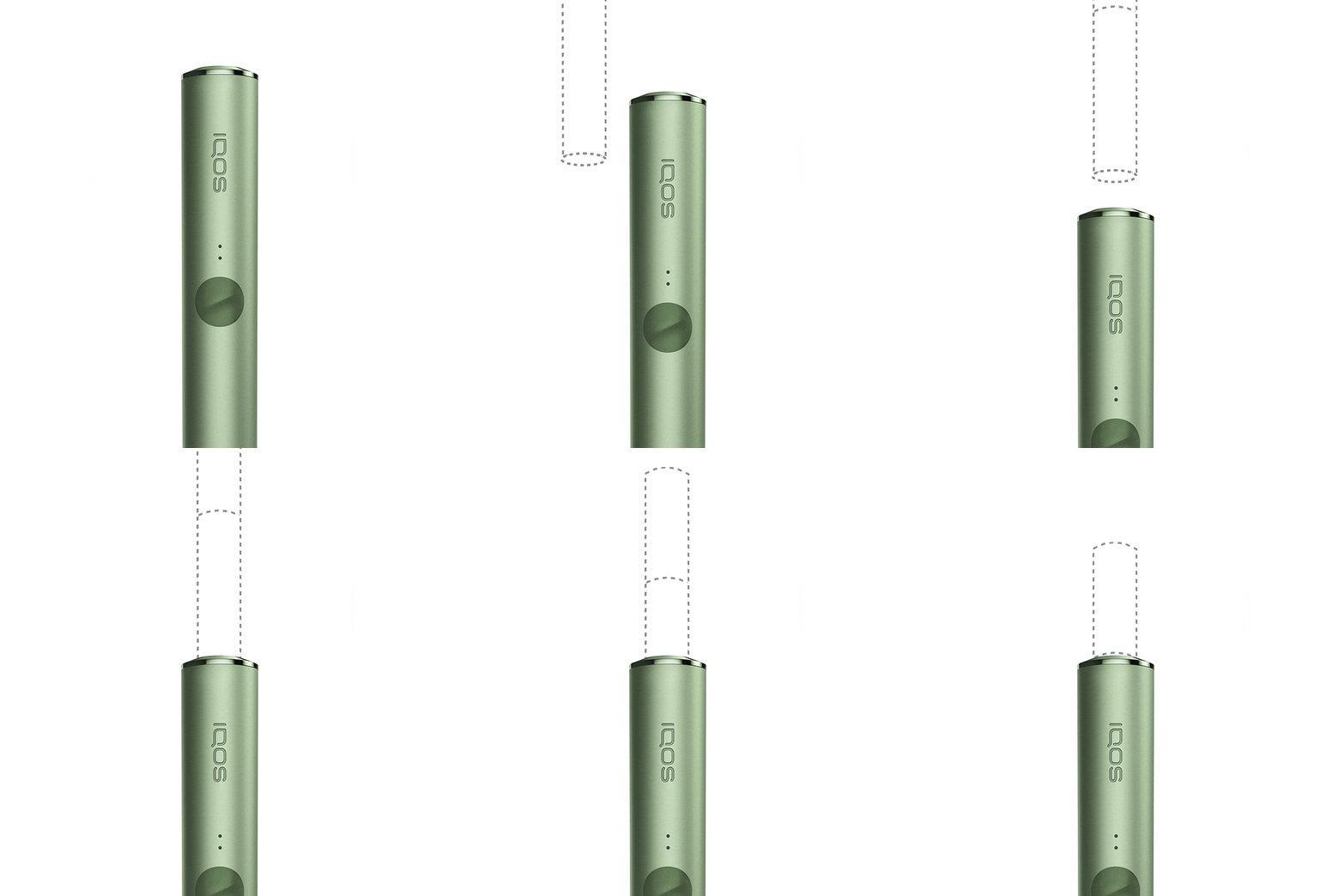
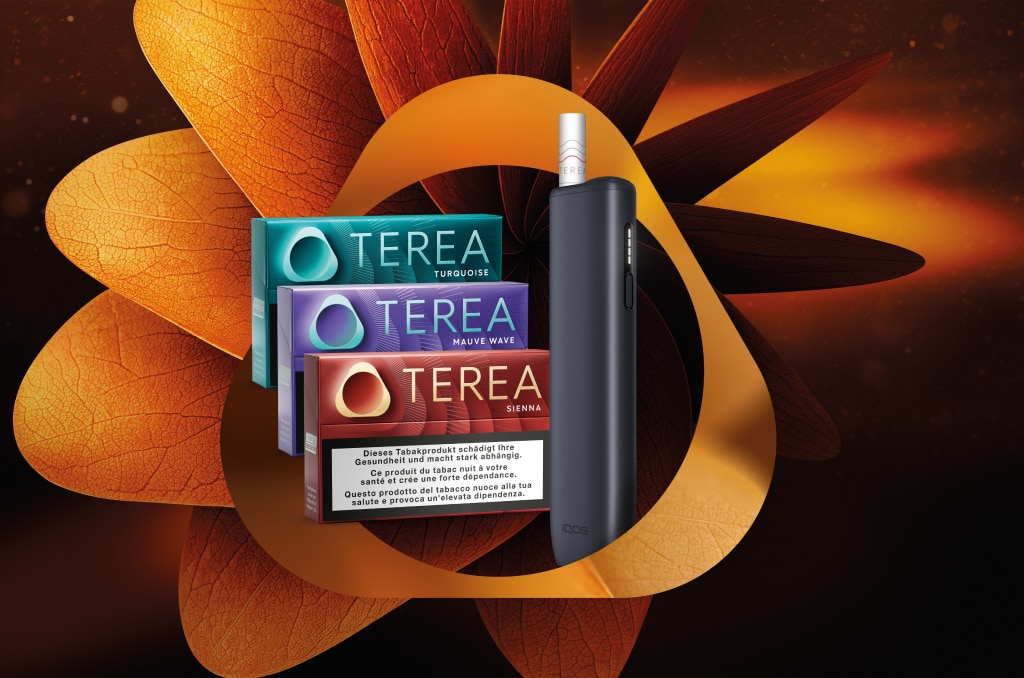
- IQOS ILUMA is designed to be used only with TEREA sticks: ensure you are using the right consumable; the device will not start with any other tobacco sticks.
- Ensure the TEREA sticks are being placed in the holder in the right direction and the line just above the top of the Holder. Ensure there is no debris in the holder which needs to be removed with a wooden toothpick. Please, do not insert any metallic objects in the holder.
- Try with another TEREA sticks properly inserted in the holder and start an experience by pressing the button for 2 seconds. If available, use a stick from a different pack.
Did this advice solve the issue? If the issue continues, proceed to the next troubleshooting step below.
Your holder’s software might need a reset
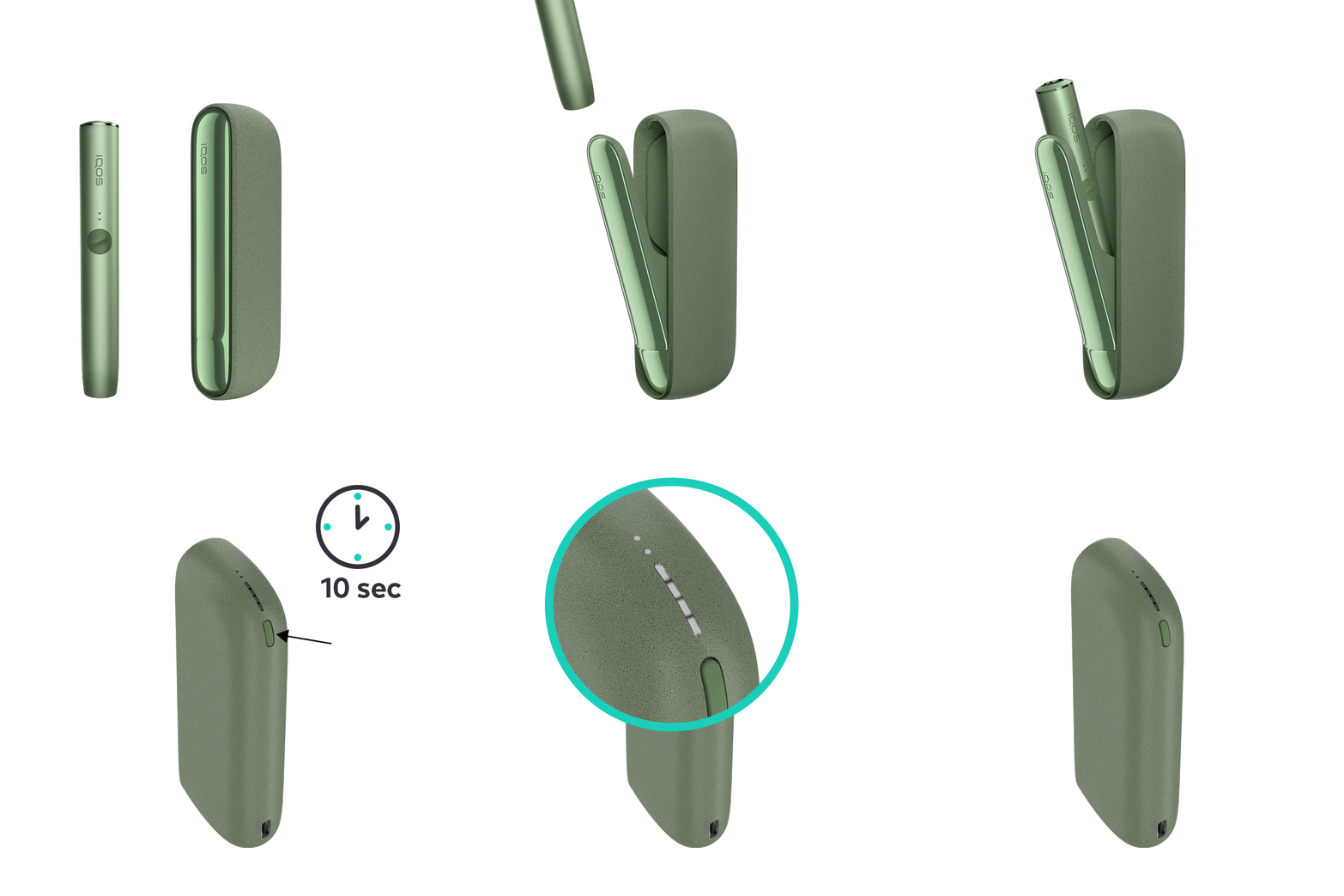
Let's Perform a RESET:
- Place the holder in the Pocket Charger. Ensure to place it correctly.
- Press and hold down the ON/OFF button on the Pocket Charger for 10 seconds until status lights fade out.
- Please note: If your IQOS ILUMA is turned OFF at the time of RESET; when pressing the button, after the first 4 seconds, the device will turn ON: lights will fade in and the device will vibrate. In order to perform the RESET correctly, it is important to keep the button continuously pressed for 10 seconds.
- RESET is confirmed when status lights fade in again and the device vibrates.
If the device is now working, the issue is resolved. If the issue continues, proceed to the next troubleshooting step below.
Firmware may need to be updated
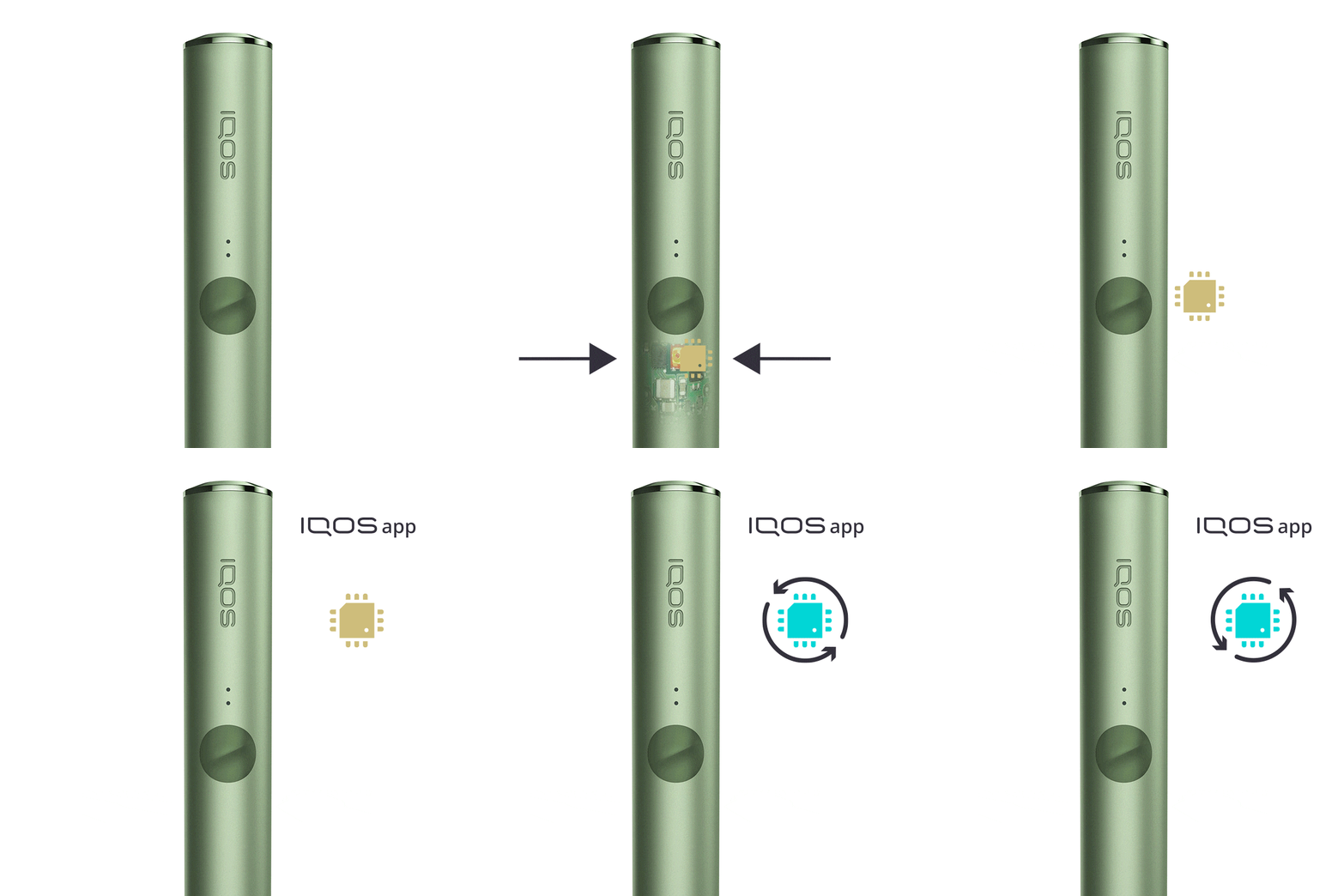
If the device is now working, the issue is resolved. If the issue continues, proceed to the next troubleshooting step below.
Update your firmware
- As every electronic device, IQOS is also built from two core elements – physical device items and the digital working instructions, called as firmware.
- Firmware of your holder and pocket charger can be regularly updated for maintenance and improvement of your device performance.
- Firmware update can be done through IQOS App or visiting an IQOS Store.
- IQOS App is available both for desktop and mobile devices.
After the Firmware update, is your device working? If the issue continues, proceed to the next troubleshooting step below.
Check whether the AutoStart always fails
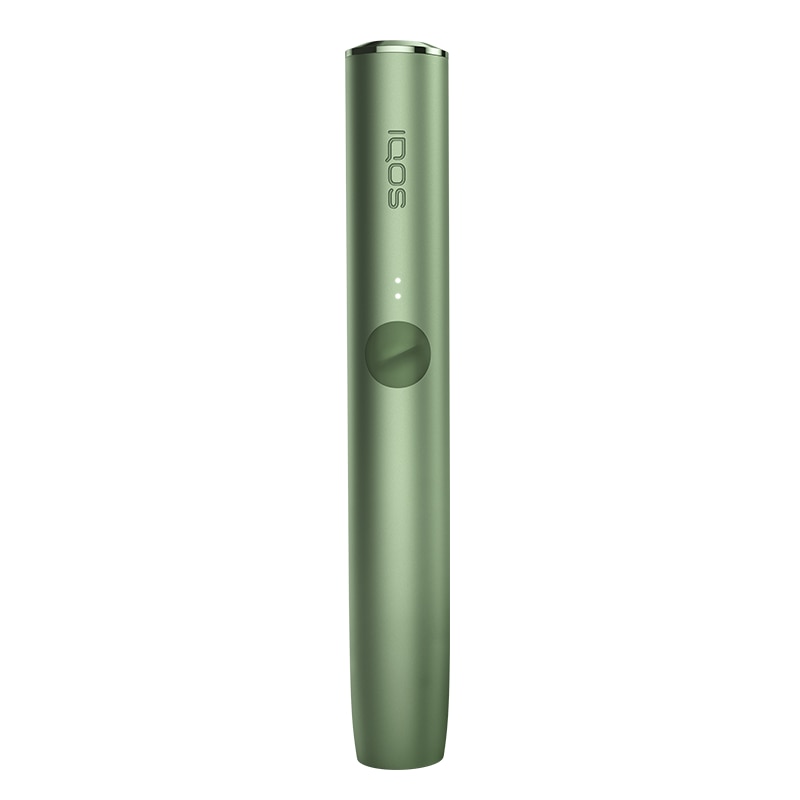
Please check whether your device never starts automatically or if it is a sporadic occurrence.
- On occasion, the device may not start automatically due to a number of factors such as stick positioning and alignment, device calibration, holder low on battery charge.
Does the AutoStart function always fail? If the issue continues, proceed to the next troubleshooting step below.
Let’s try to start the experience manually
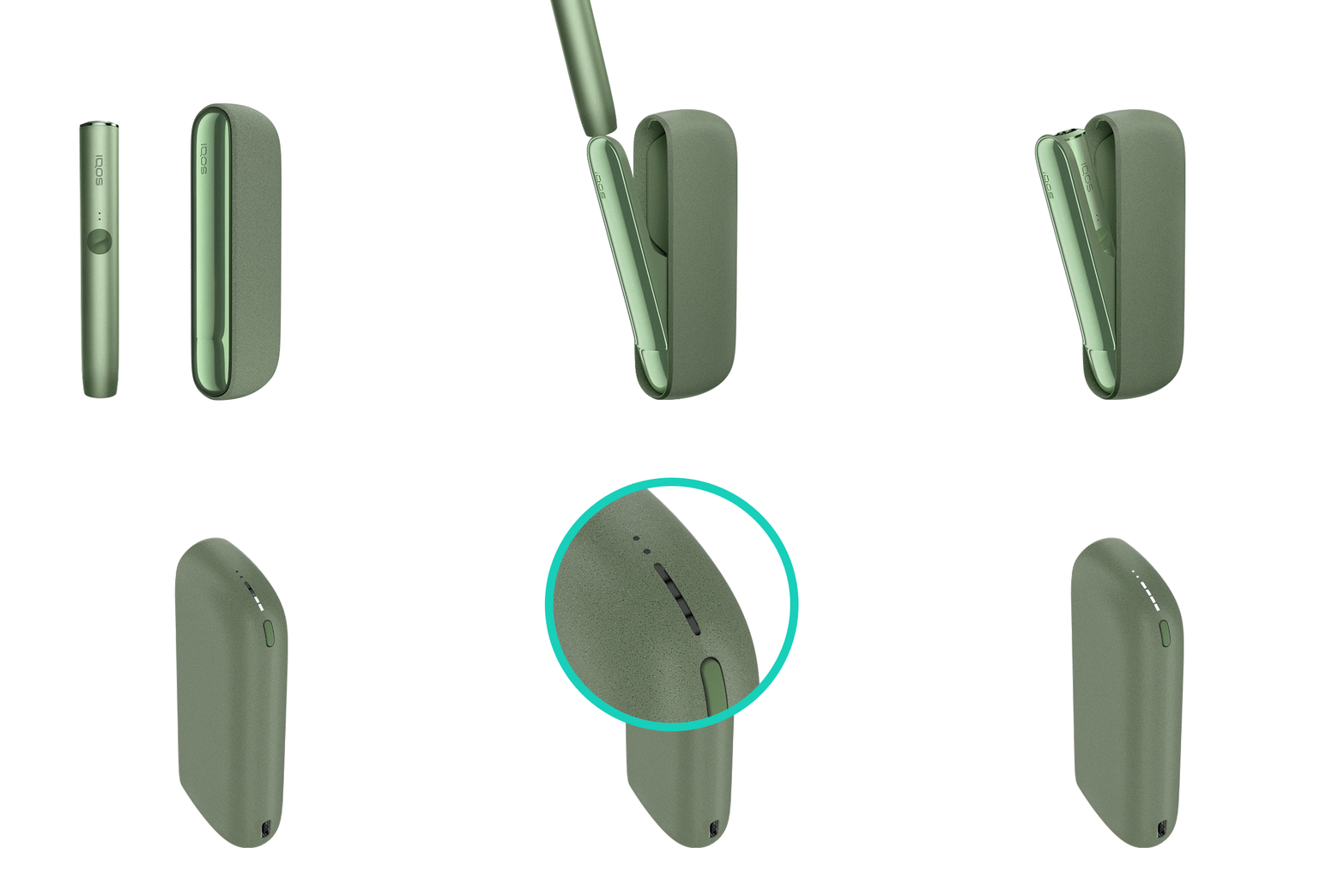
- Ensure the device is turned ON:
- Press the pocket charger button for 4 seconds to turn your device ON. Remember, the same action applies to turn it OFF as well. Turning OFF the pocket charger will also turn OFF the holder.
- Take your holder and insert a TEREA stick: make sure the consumable is being placed in the holder in the right direction and the line being aligned with the top of the Holder.
- Press the holder button for 2 seconds to start the experience manually.
After these steps, is your holder working? If the issue continues, proceed to the next troubleshooting step below.
Not Covered
If you wish to reach a customer service representative, visit “contact us” page to choose the channel of your preference.
If the device is now working, the issue is resolved. If the issue continues, proceed to the next troubleshooting step below.
IQOS ILUMA PRIME Holder
The AutoStart function might have been deactivated from IQOS App
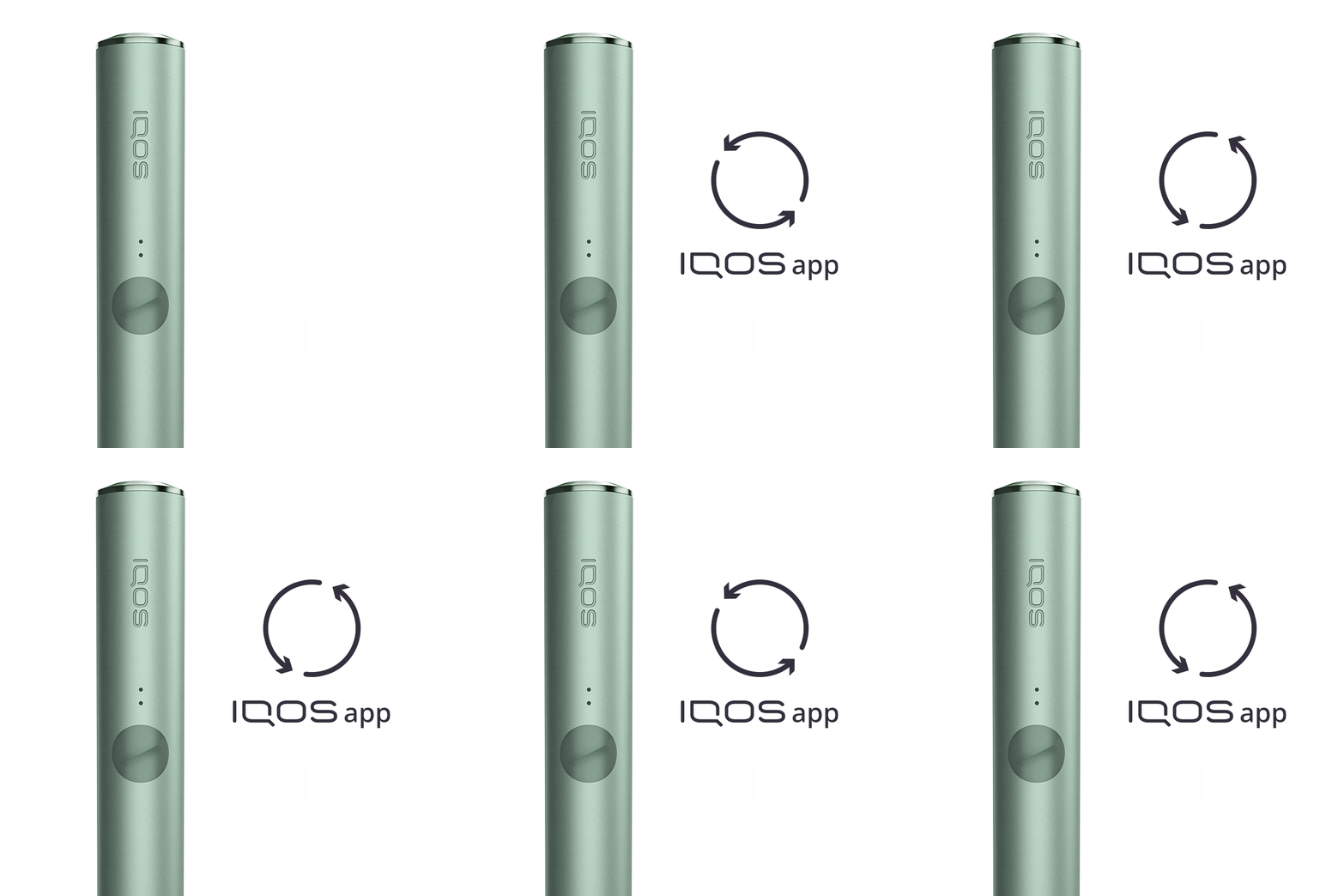
- Make sure your device is connected to the IQOS App: Before performing connection steps, please;
- Make sure both Charger and Holder are registered on your profile on iqos.com.
- If you are using web app, clear your cache in the browser.
- Make sure your holder is inside the pocket charger before performing a Bluetooth connection.
- Let’s follow these few steps to connect your mobile device to the IQOS App:
- Remove all devices, not only IQOS, from the Bluetooth settings of the respective end device.
- Turn OFF Bluetooth on the phone/PC.
- Turn ON back Bluetooth on the phone/PC again.
- Turn OFF your IQOS and turn it ON again by pressing the pocket charger button for 4 seconds. This will instantly reactivate Bluetooth of your IQOS device.
- Log in to IQOS App again and follow the shown steps.
- Ensure that only one IQOS device is connected via Bluetooth.
- If you are using an iOS device, make sure you launch the IQOS app using the Bluefy browser.
- If this does not work, try pairing your IQOS via USB cable on Mac or PC.
- From the IQOS App, ensure that the AutoStart function hasn’t been de-activated: AutoStart is always activated by default on a new device.
Did this advice solve the issue? If the issue continues, proceed to the next troubleshooting step below.
Ensure you are using the right TEREA stick consumable
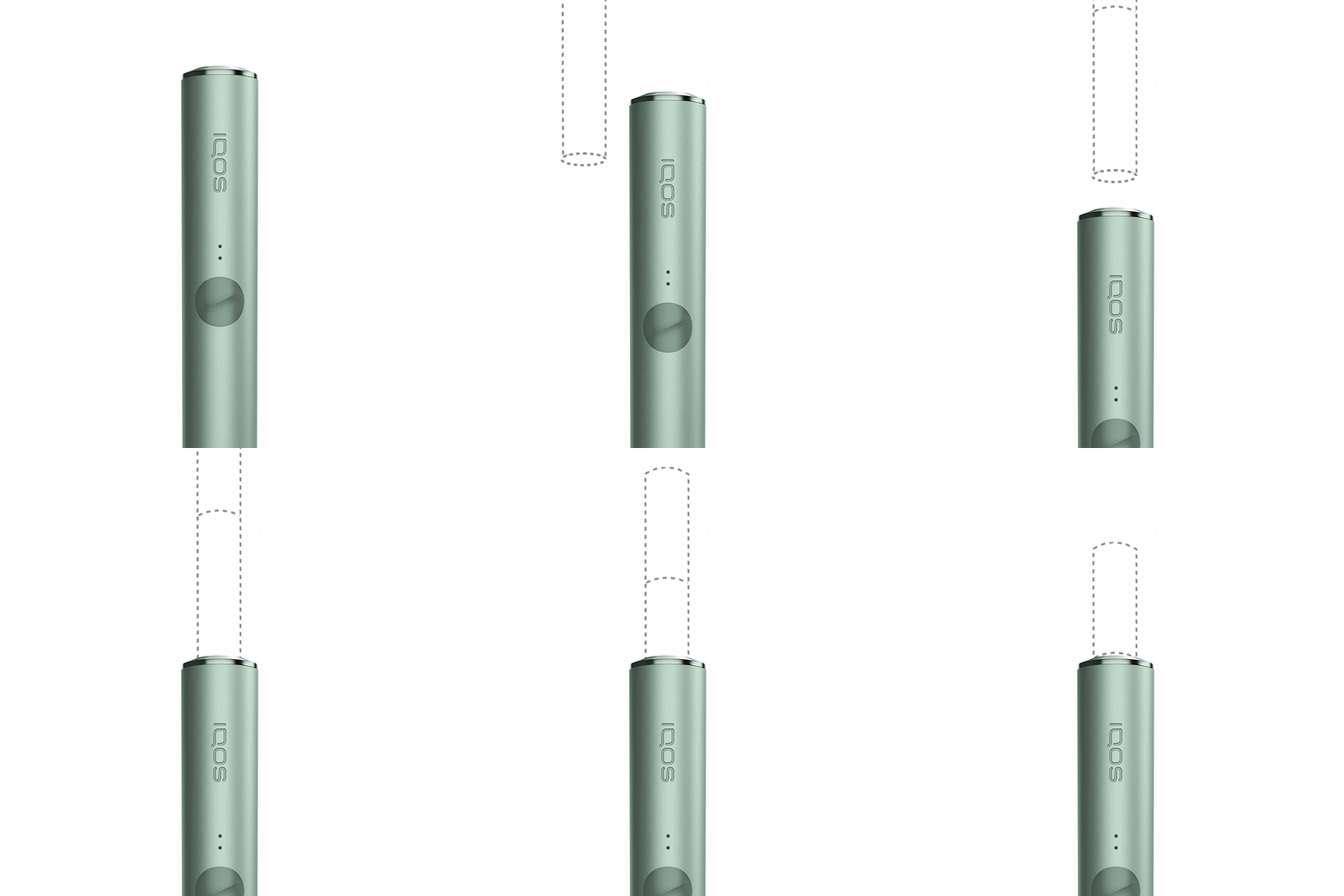
- IQOS ILUMA is designed to be used only with TEREA sticks: ensure you are using the right consumable; the device will not start with any other tobacco stick.
- Ensure the TEREA sticks are being placed in the holder in the right direction and the line just above the top of the Holder. Ensure there is no debris in the holder which needs to be removed with a wooden toothpick. Please, do not insert any metallic objects in the holder.
- Try with another TEREA sticks properly inserted in the holder and start an experience by pressing the button for 2 seconds. If available, use a stick from a different pack.
Did this advice solve the issue? If the issue continues, proceed to the next troubleshooting step below.
Your holder’s software might need a reset
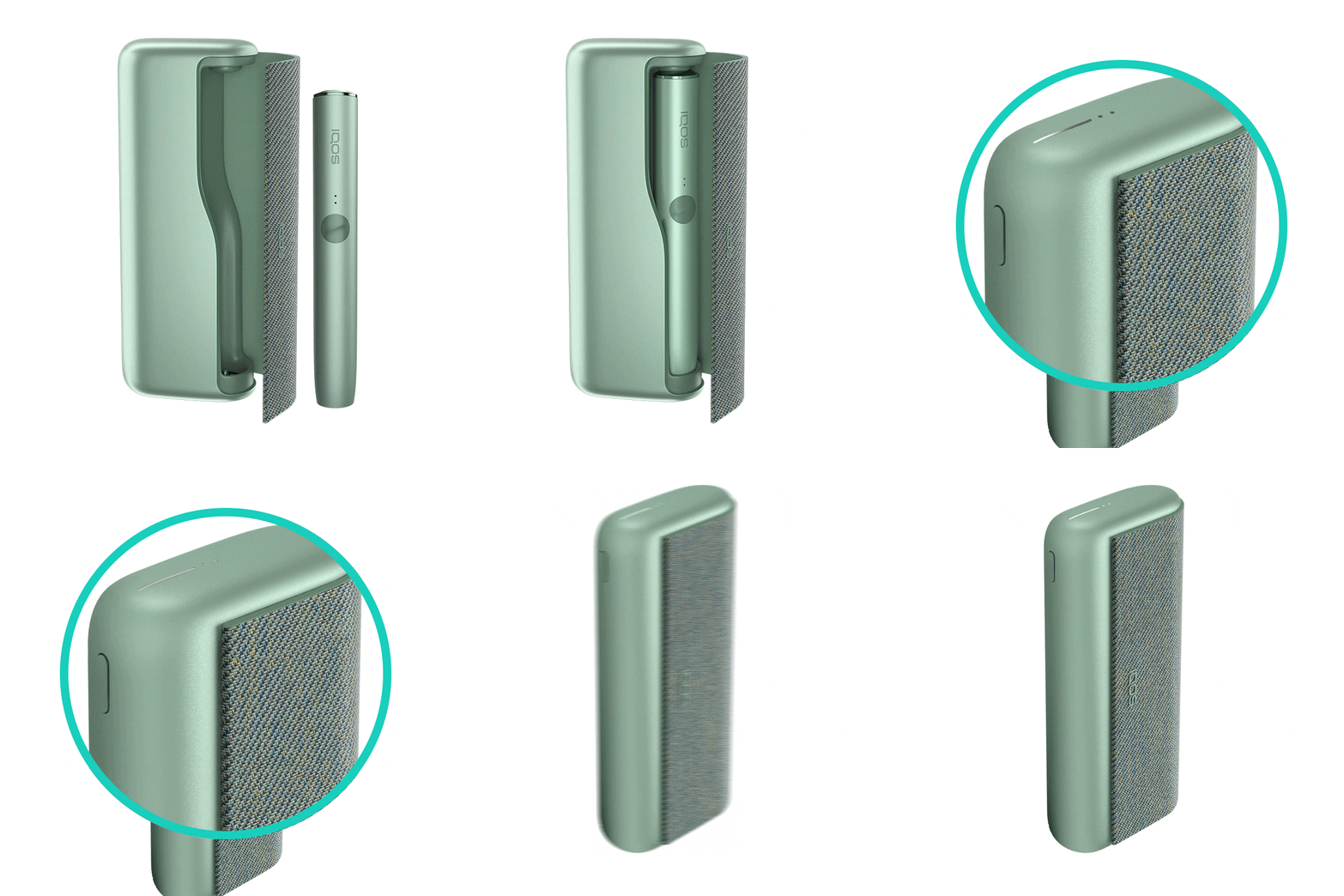
Let's Perform a RESET:
- Place the holder in the Pocket Charger. Ensure to place it correctly.
- Press and hold down the ON/OFF button on the Pocket Charger for 10 seconds until status lights fade out.
- Please note: If your IQOS ILUMA is turned OFF at the time of RESET; when pressing the button, after the first 4 seconds, the device will turn ON: lights will fade in and the device will vibrate. In order to perform the RESET correctly, it is important to keep the button continuously pressed for 10 seconds.
- RESET is confirmed when status lights fade in again and the device vibrates.
If the device is now working, the issue is resolved. If the issue continues, proceed to the next troubleshooting step below.
Firmware may need to be updated
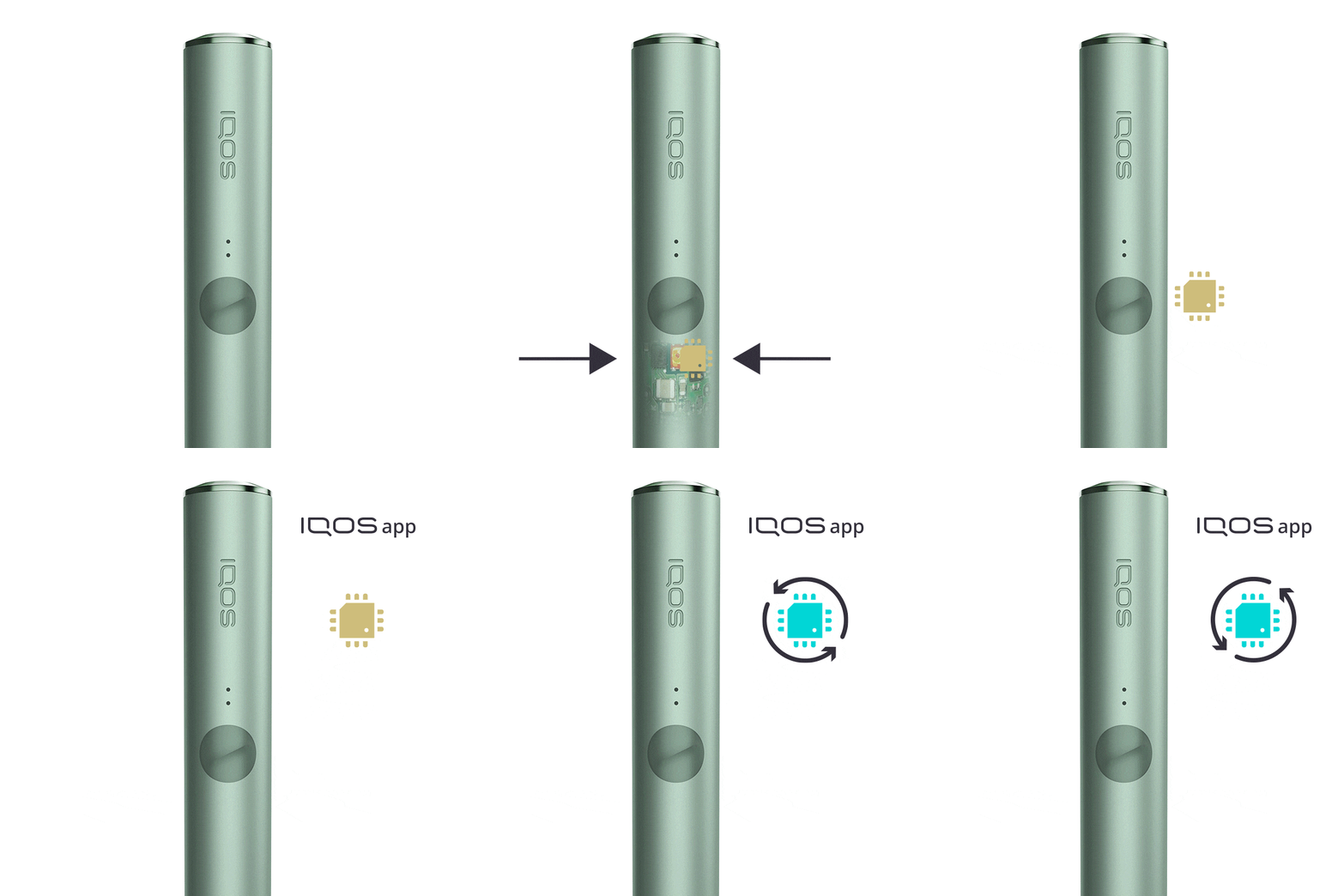
- As every electronic device, IQOS is also built from two core elements – physical device items and the digital working instructions, called as firmware.
- Firmware of your holder and pocket charger can be regularly updated for maintenance and improvement of your device performance.
- Firmware update can be done through IQOS App or visiting an IQOS Store.
- IQOS App is available both for desktop and mobile devices
After the Firmware update, is your device working? If the issue continues, proceed to the next troubleshooting step below.
Check whether the AutoStart always fails
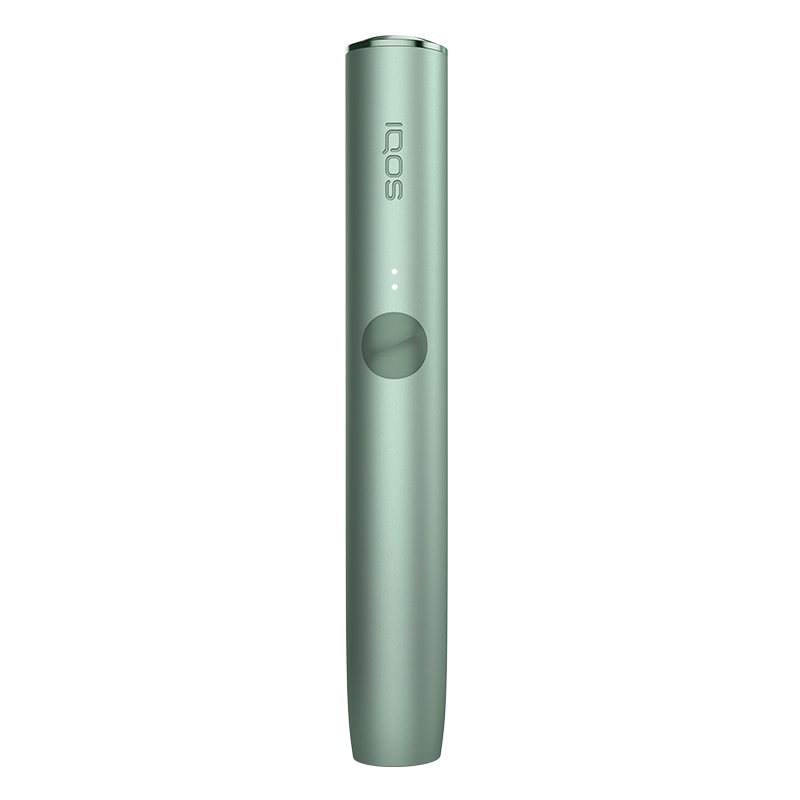
Please, check whether your device never starts automatically or if it is a sporadic occurrence:
- On occasion, the device may not start automatically due to a number of factors such as stick positioning and alignment, device calibration, holder low on battery charge.
Does the AutoStart function always fail? If the issue continues, proceed to the next troubleshooting step below.
Let’s try to start the experience manually
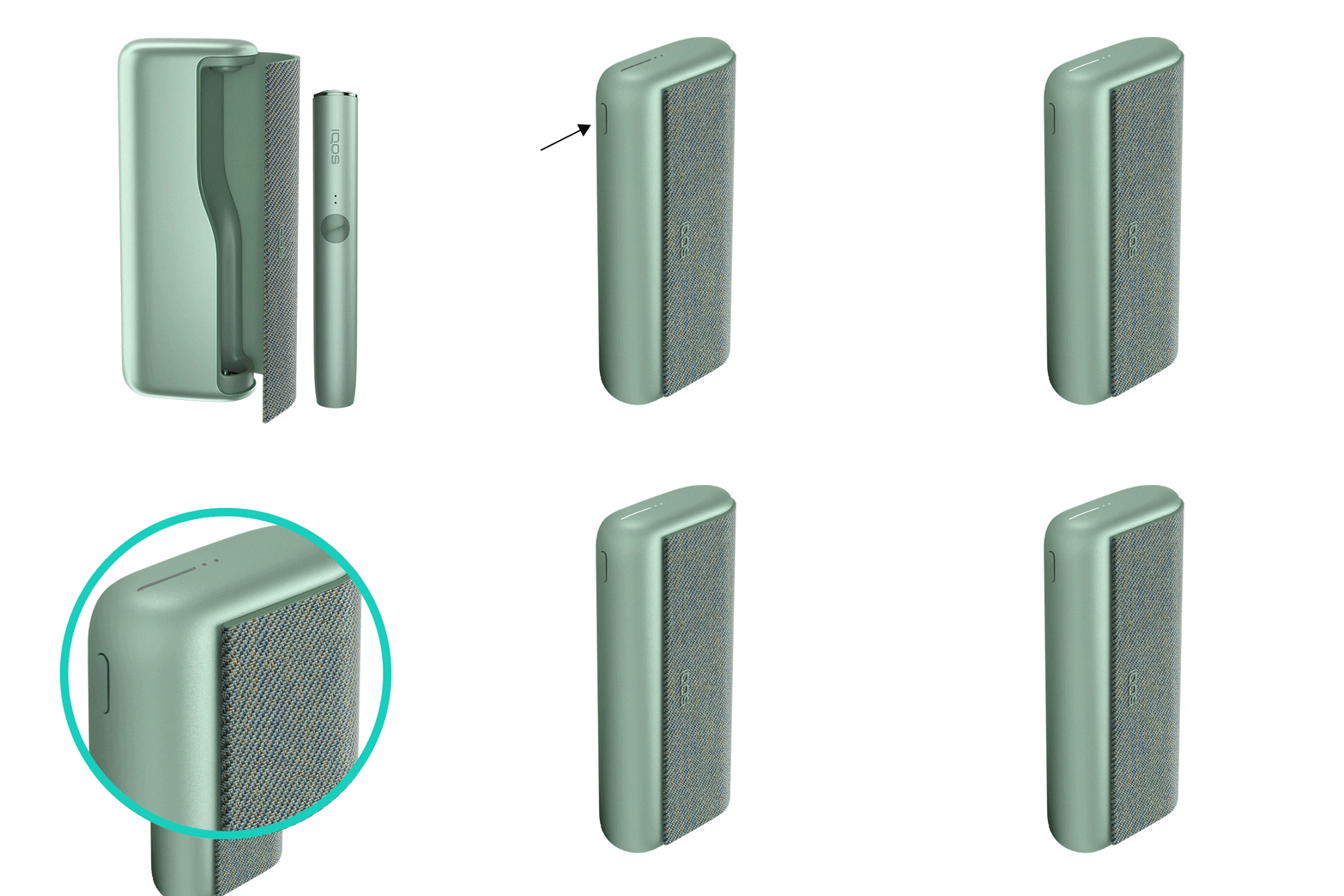
- Ensure the device is turned ON.
- Press the pocket charger button for 4 seconds to turn your device ON. Remember, the same action applies to turn it OFF as well. Turning OFF the pocket charger will also turn OFF the holder.
- Take your holder and insert a TEREA stick: make sure the consumable is being placed in the holder in the right direction and the line being aligned with the top of the Holder.
- Press the holder button for 2 seconds to start the experience manually.
After these steps, is your holder working? If the issue continues, proceed to the next troubleshooting step below.
If your device is eligible, we will place a replacement order for you!
If the issue is resolved
Congratulations! We are happy that you can now continue enjoying IQOS.
- If you need any further support on your device, you can also visit our FAQs
- We are frequently introducing new product and accessories. See what's new by visiting our online store or at one of physical locations