















Feb 4, 2025
IQOS Pocket Charger Not Turning On: How to Fix It
Is your IQOS Pocket Charger not turning on?
Your Pocket charger might be OFF
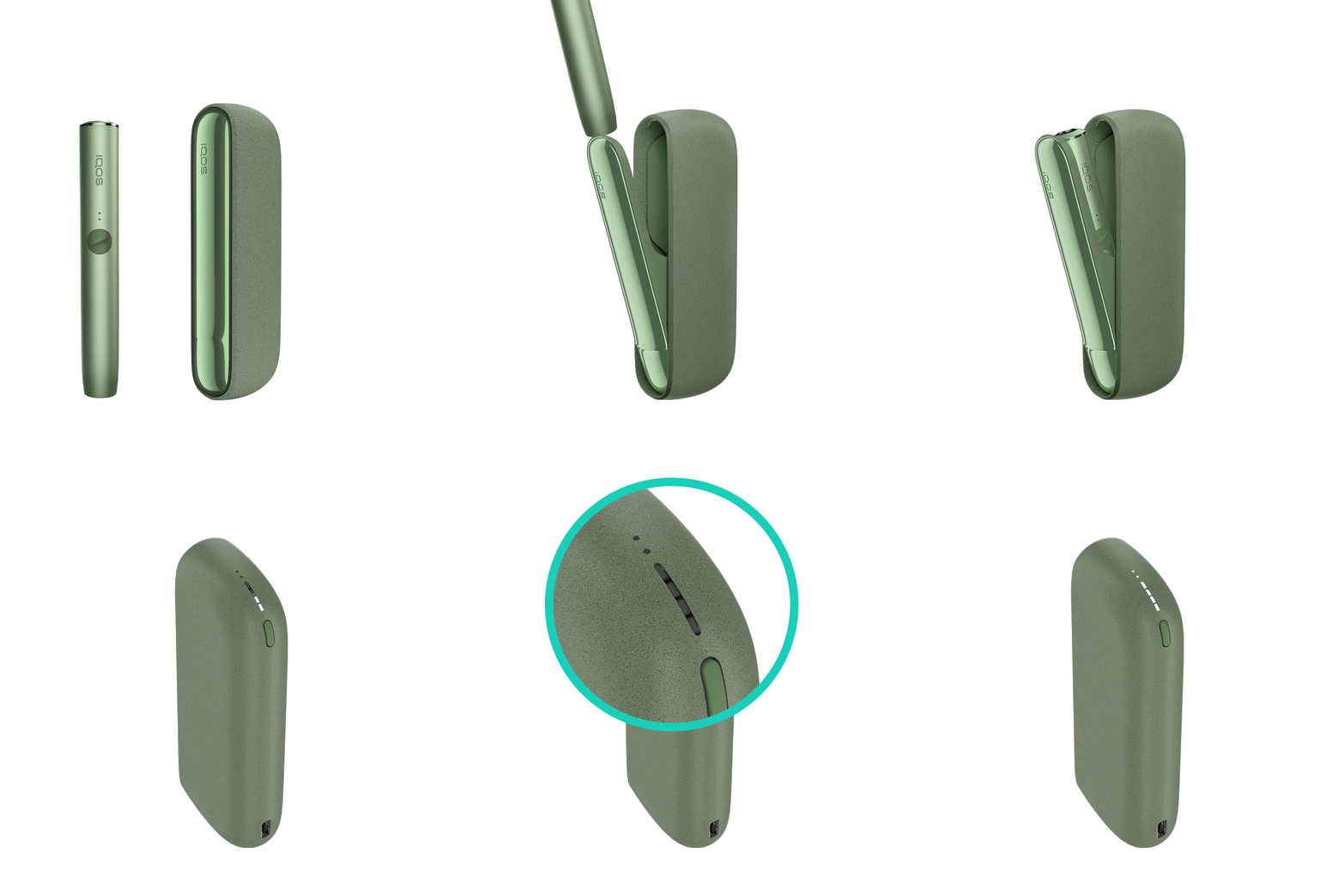
- Place the holder inside the pocket charger. Ensure to place it correctly.
- Press the pocket charger button for 4 seconds to turn your device ON. Remember, the same action applies to turn it OFF as well. Turning OFF the pocket charger will also turn OFF the holder.
After these steps, did your pocket charger start to work? If the issue continues, proceed to the next troubleshooting step below.
Your pocket charger might not be getting charge from the power outlet
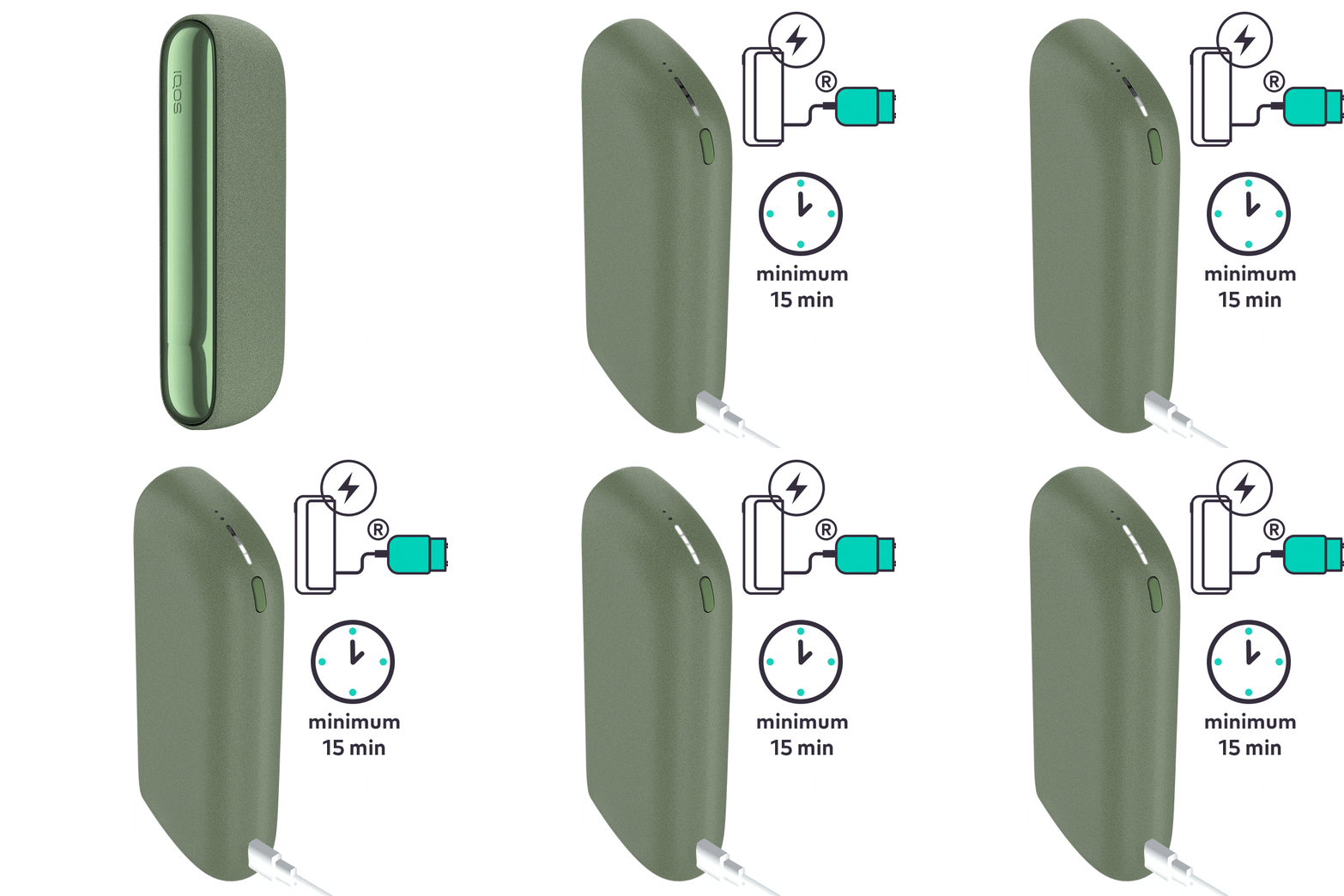
- Ensure the optimal charging for your pocket charger:
- Use official IQOS power adaptor and cable. Unofficial ones may interrupt the charging.
- Refrain from charging with a laptop. This may also interrupt the charging.
- Ensure that you have plugged the pocket charger into a wall power outlet.
- Check the charging cable entrance of your pocket charger. If there is any blockage, remove the blockage by gently blowing from distance.
- Check if your power adaptor and cable is working. Try to charge your pocket charger with another power adaptor and cable.
- Please note: If the pocket charger is charged whilst OFF, the lights will turn OFF when unplugging it.
After these steps, do the lights turn ON? If the issue continues, proceed to the next troubleshooting step below.
Your device might need a RESET
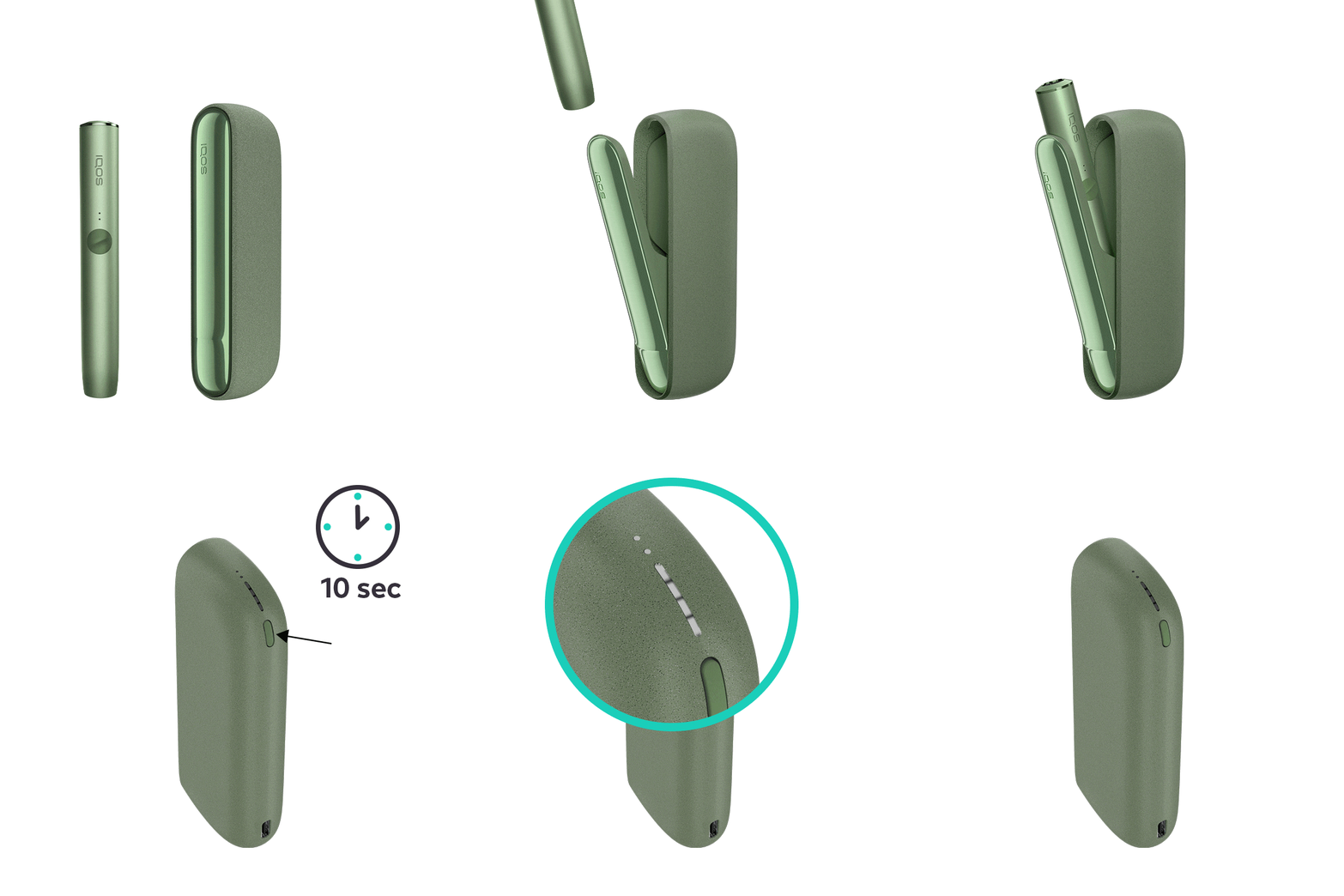
Let's Perform a RESET:
- Place the holder in the Pocket Charger. Ensure to place it correctly.
- Press and hold down the ON/OFF button on the Pocket Charger for 10 seconds until status lights fade out.
- Please note: If your IQOS ILUMA is turned OFF at the time of RESET; when pressing the button, after the first 4 seconds, the device will turn ON: lights will fade in and the device will vibrate. In order to perform the RESET correctly, it is important to keep the button continuously pressed for 10 seconds.
- RESET is confirmed when status lights fade in again and the device vibrates.
After these steps, is your pocket charger working? If the issue continues, proceed to the next troubleshooting step below.
There may have been liquid ingress into your device
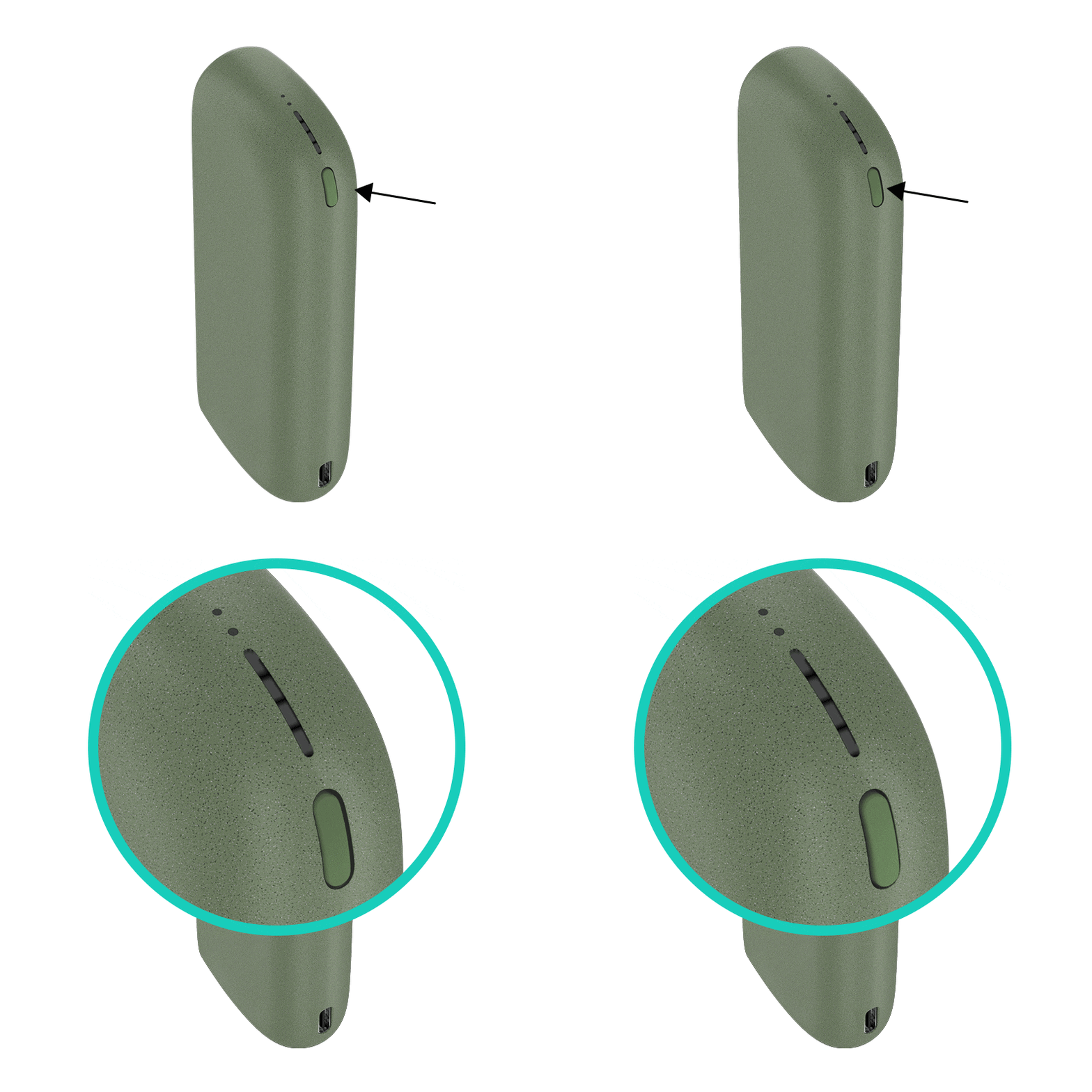
If your device was exposed to liquid, continue with the accidental damage guidance below. If it was not, continue with the physical damage check.
IQOS ILUMA PRIME Pocket Charger
Your Pocket charger might be OFF
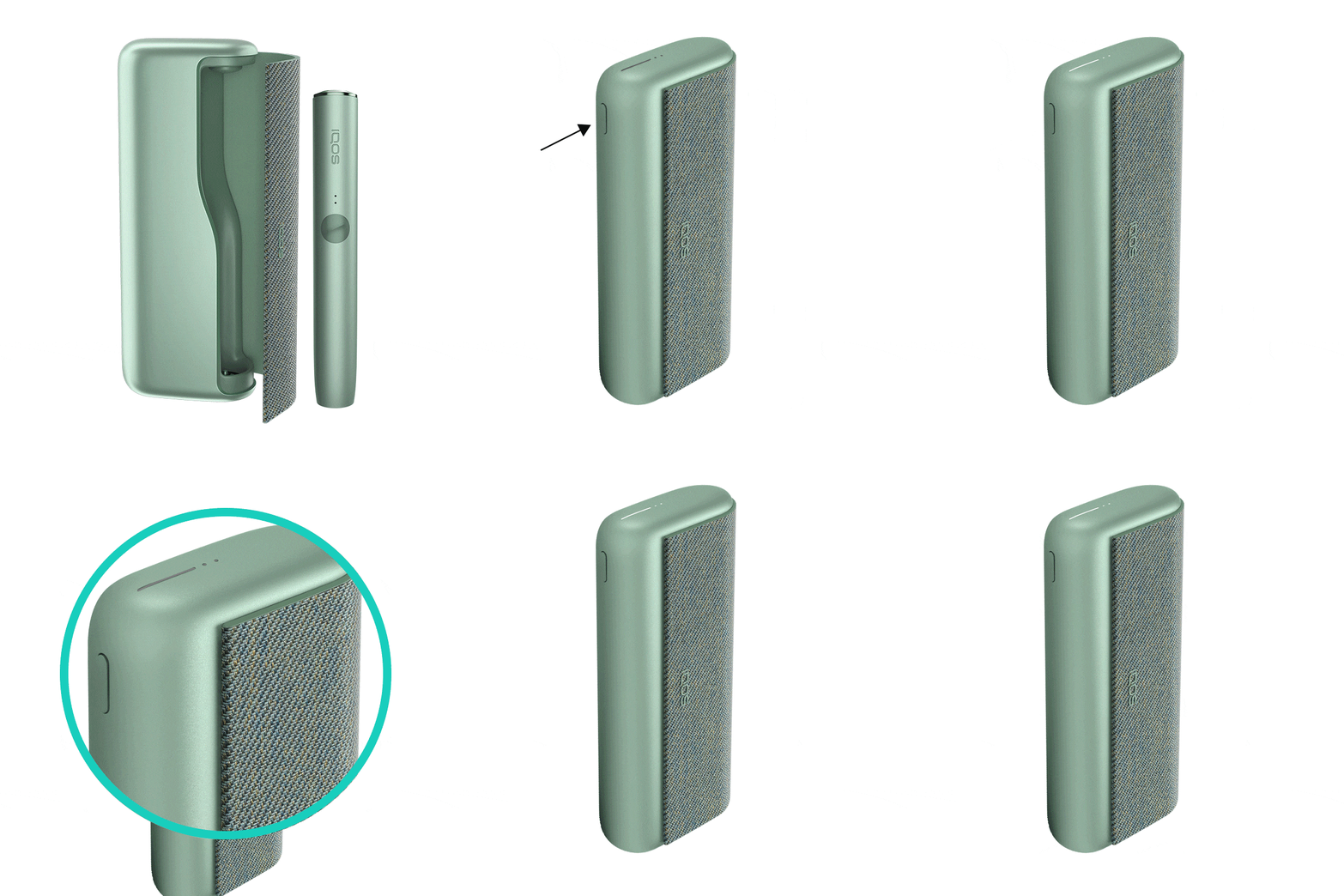
- Place the holder inside the pocket charger. Ensure the holder is fully inserted in the pocket charger.
- Press the pocket charger button for 4 seconds to turn your device ON. Remember, the same action applies to turn it OFF as well. Turning OFF the pocket charger will also turn OFF the holder.
After these steps, did your pocket charger start to work? If the issue continues, proceed to the next troubleshooting step below.
Your pocket charger might not be getting charge from the power outlet
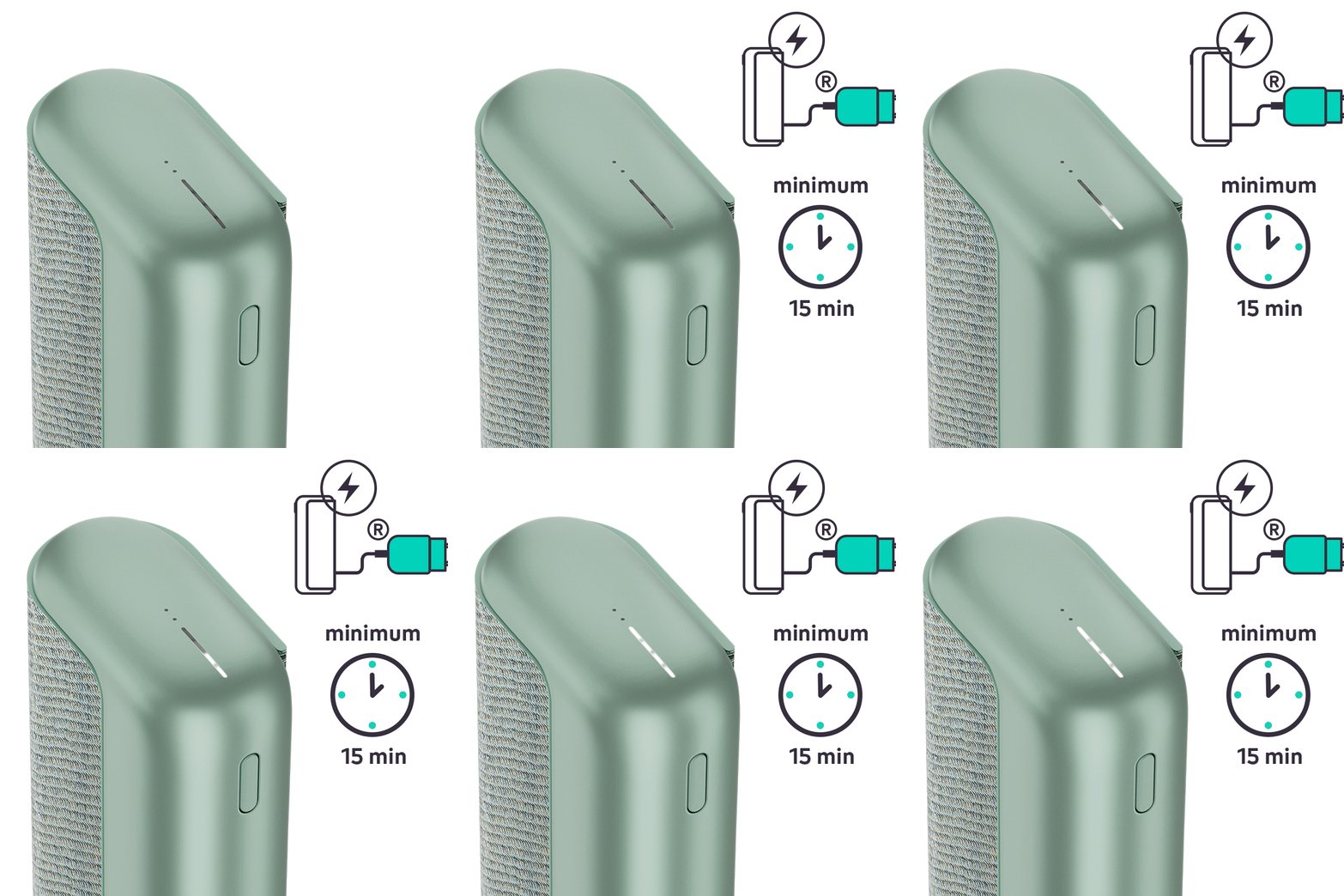
- Ensure the optimal charging for your pocket charger;
- Use official IQOS power adaptor and cable. Unofficial ones may interrupt the charging.
- Refrain from charging with a laptop. This may also interrupt the charging.
- Ensure that you have plugged the pocket charger into a wall power outlet.
- Check the charging cable entrance of your pocket charger. If there is any blockage, remove the blockage by gently blowing from distance.
- Check if your power adaptor and cable is working. Try to charge your pocket charger with another power adaptor and cable.
- Please note: If the pocket charger is charged whilst OFF, the lights will turn OFF when unplugging it.
After these steps, do the lights turn ON? If the issue continues, proceed to the next troubleshooting step below.
Your device might need a RESET
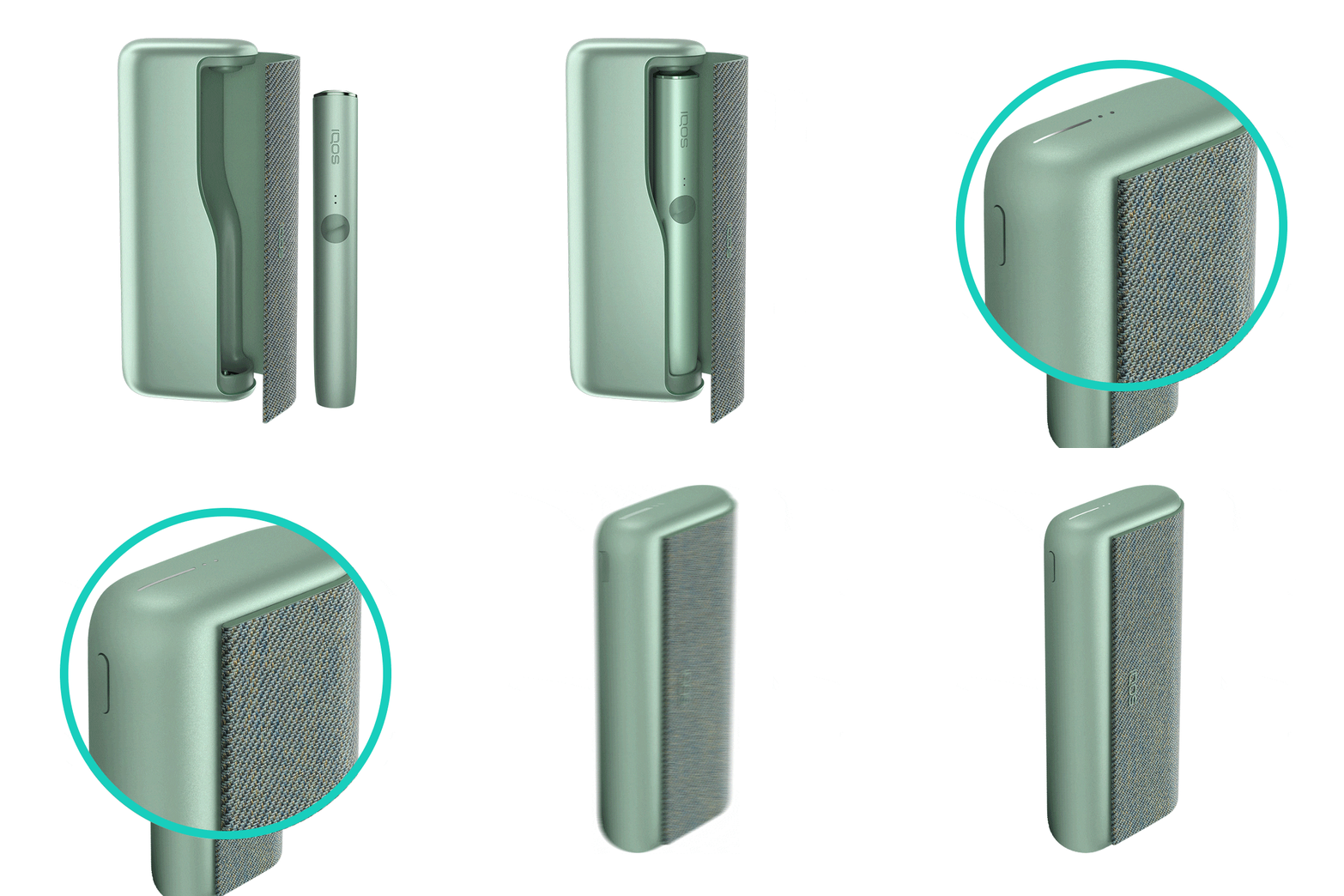
Let's Perform a RESET:
- Place the holder in the Pocket Charger. Ensure to place it correctly.
- Press and hold down the ON/OFF button on the Pocket Charger for 10 seconds until status lights fade out.
- Please note: If your IQOS ILUMA is turned OFF at the time of RESET; when pressing the button, after the first 4 seconds, the device will turn ON: lights will fade in and the device will vibrate. In order to perform the RESET correctly, it is important to keep the button continuously pressed for 10 seconds.
- RESET is confirmed when status lights fade in again and the device vibrates.
After these steps, is your pocket charger working? If the issue continues, proceed to the next troubleshooting step below.
There may have been liquid ingress into your device
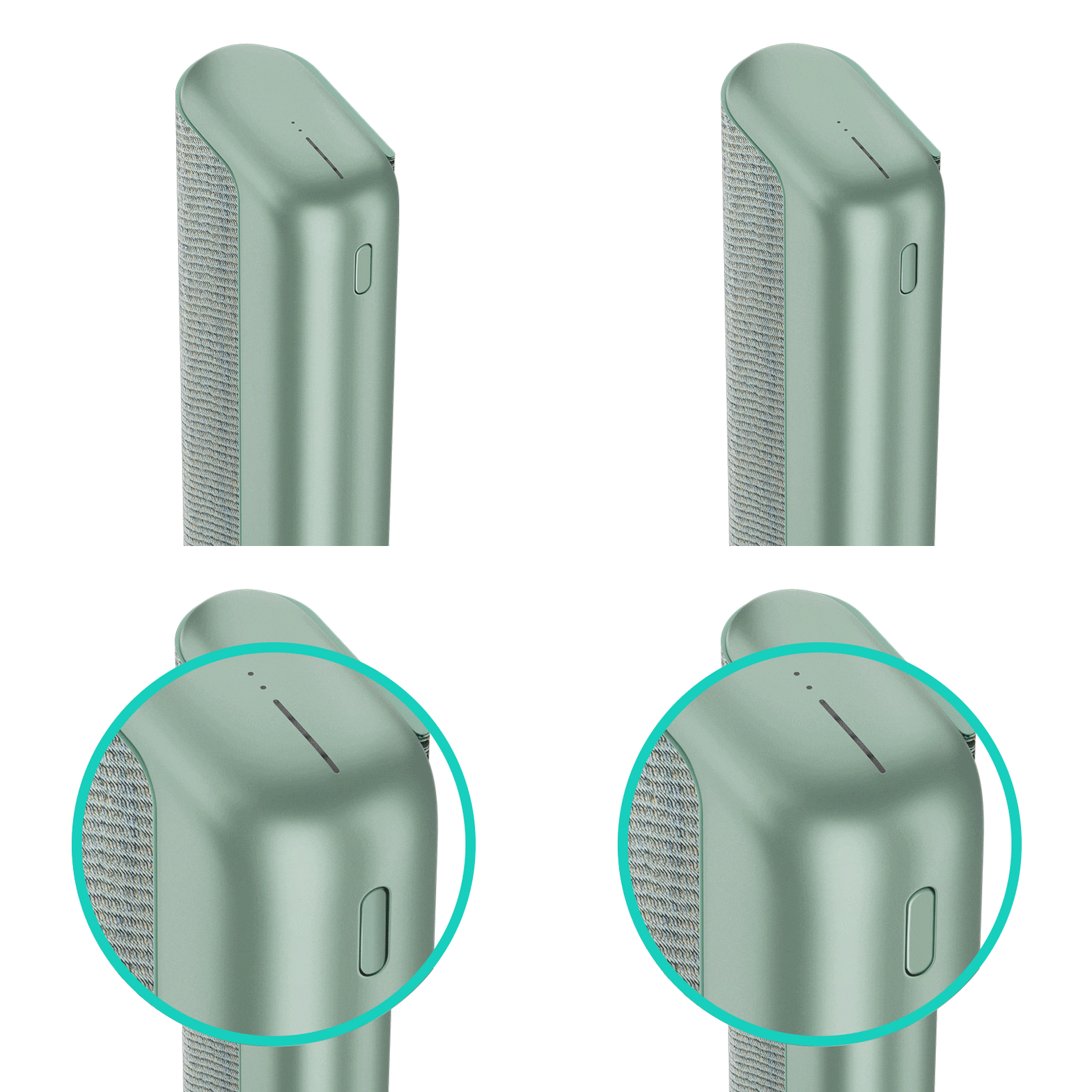
If your device was exposed to liquid, continue with the accidental damage guidance below. If it was not, continue with the physical damage check.
Your Pocket Charger might be physically damaged
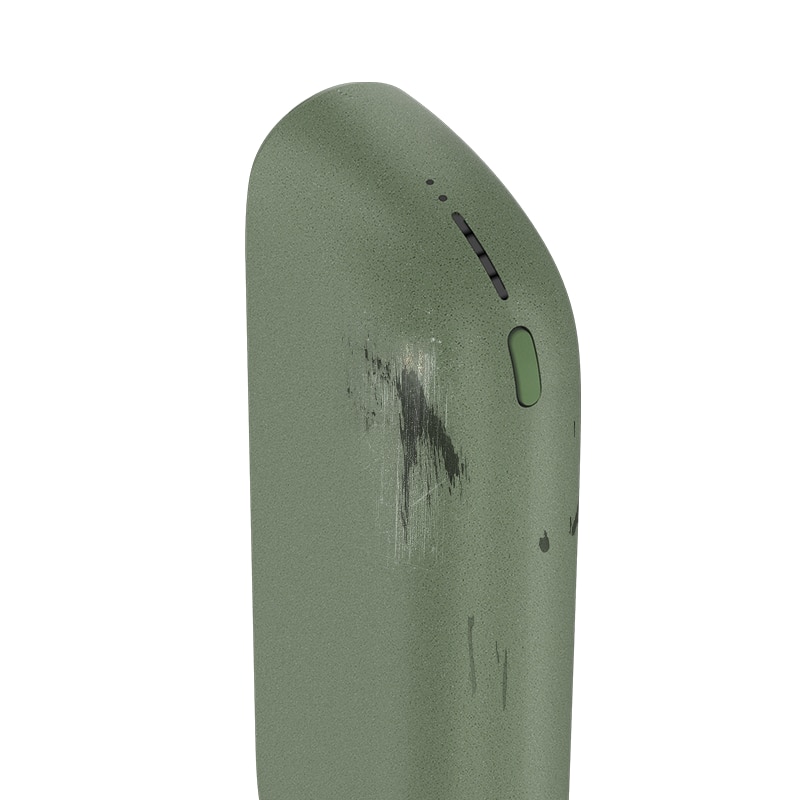
If the device was used according to the packaging instructions but the issue continues, see Accidental Damage below.
Accidental Damage
Accidental Damage is a free of charge service for our customers. It is offered as a support to replace the products which lost the functionality, after being subject to the damages that are not covered by legal warranty (e.g. drops, contacts with liquids or abrasive agents). If your device is eligible, we will place a replacement order for you!
If the issue is resolved
Congratulations! We are happy that you can now continue enjoying IQOS.
- If you need any further support on your device, you can also visit our FAQs
- We are frequently introducing new product and accessories. See what's new by visiting our online store or at one of physical locations