
















Feb 4, 2025
IQOS ILUMA Blinking Yellow or Orange Light: How to Fix
Is your IQOS ILUMA blinking yellow or orange?
Your device needs to be charged
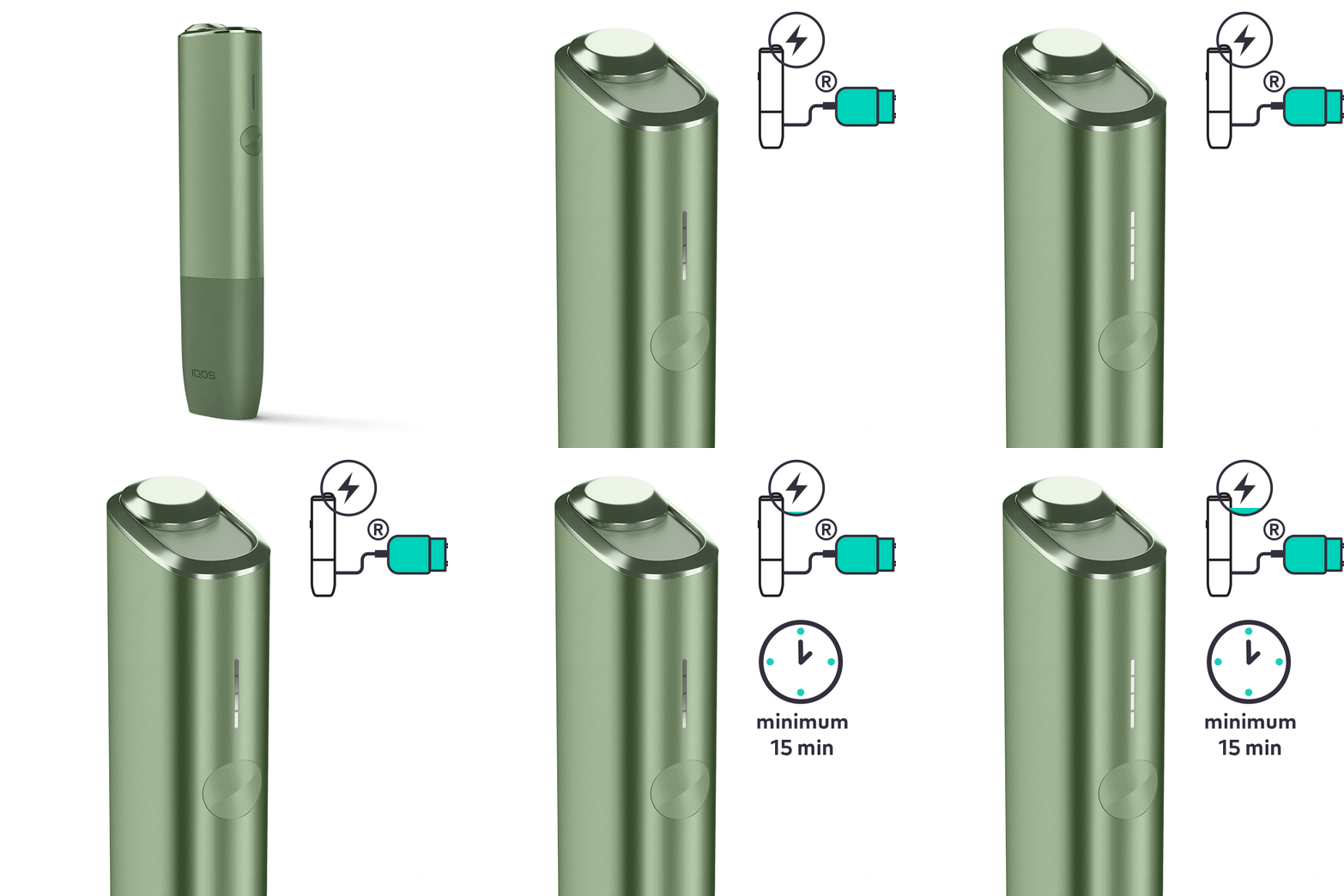
- Ensure the optimal charging for your device:
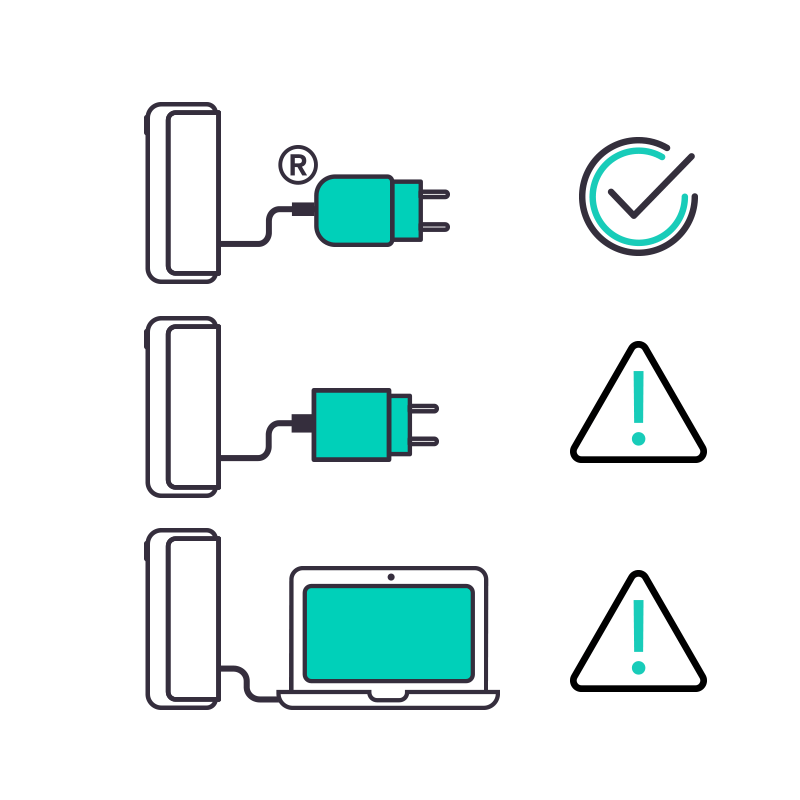
- Use official power adaptor and cable. Unofficial ones may interrupt the charging.
- Avoid charging with a laptop: it may slow down the charging time.
- Plug your device to a wall power outlet with your manufacturer approved power adaptor and cable.
- 15 min of charge time should be sufficient for the yellow light to change to a white blinking light.
- Level of charge is shown through the light strip above the button while the device is being charged.
- While charging, the first light will be flashing white until the level of charge reaches the 25%. At this point the first light will become solid and the second light will start flashing white until it reaches 50% charged and becomes solid white too. The same pattern will continue until the device is fully charged. To be fully charged, it will take approx. 90 min.
- When fully charged, four solid white light will appear on short button press.
After these steps, is your device charged? If the issue continues, proceed to the next troubleshooting step below.
Your device might need a reset
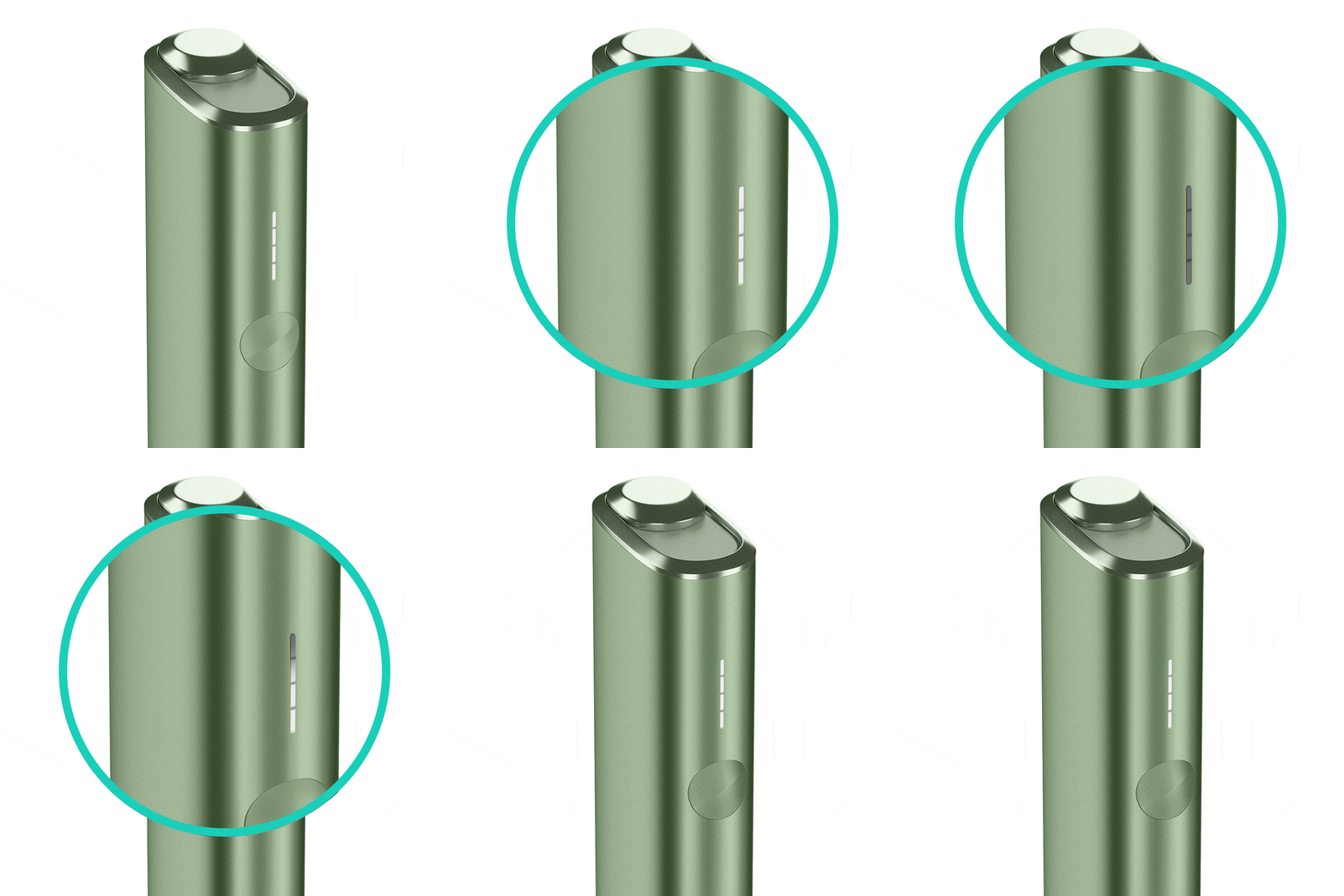
Let's Perform a RESET:
- Press and hold down the ON/OFF button on the device for 10 seconds until status lights fade out.
- Please note: If your IQOS ILUMA is turned OFF at the time of RESET; when pressing the button, after the first 4 seconds, the device will turn ON: lights will fade in and the device will vibrate. In order to perform the RESET correctly, it is important to keep the button continuously pressed for 10 seconds.
- RESET is confirmed when status lights fade in again and the device vibrates.
If the device is now working, the issue is resolved. If the issue continues, proceed to the next troubleshooting step below.
IQOS ILUMA Holder
Your holder needs to be charged
Let's charge your holder:
- Place the holder back inside the pocket charger. Ensure to place it correctly.
- Ensure the Pocket Charger is ON by short pressing the ON/OFF Button.
- If you don’t see any lights on your pocket charger, press the pocket charger button for 4 seconds to turn your device ON. Remember, the same action applies to turn it OFF as well. Turning OFF the pocket charger will also turn OFF the holder.
- If your pocket charger is already ON, solid white strip lights will turn on showing the charge level of your Pocket Charger.
- Make sure your pocket charger is charged enough to fully charge the holder.
- Ensure the optimal charging for your device.
- Use official IQOS power adaptor and cable. Unofficial ones may interrupt the charging.
- Refrain from charging with a laptop. This may also interrupt the charging.
- Check and remove, if necessary, residues or dust that may interfere with the contacts between holder and pocket charger.
- Leave the Holder to charge for about 5 min or until the first holder light on the Pocket Charger turns solid white.
After these steps, did your holder start to be charged? If the issue continues, proceed to the next troubleshooting step below.
Let’s diagnose your pocket charger!
In order to be able to diagnose further, please continue with the Pocket Charger troubleshooting guides.
IQOS ILUMA PRIME Holder
Your holder needs to be charged
Let's charge your holder:
- Place the holder back inside the pocket charger. Ensure to place it correctly.
- Ensure the Pocket Charger is ON by short pressing the ON/OFF Button:
- If you don’t see any lights on your pocket charger, press the pocket charger button for 4 seconds to turn your device ON. Remember, the same action applies to turning it OFF as well. Turning OFF the pocket charger will also turn OFF the holder.
- If your pocket charger is already ON, solid white strip lights will turn on showing the charge level of your Pocket Charger.
- Make sure your pocket charger is charged enough to fully charge the holder.
- Ensure the optimal charging for your device:
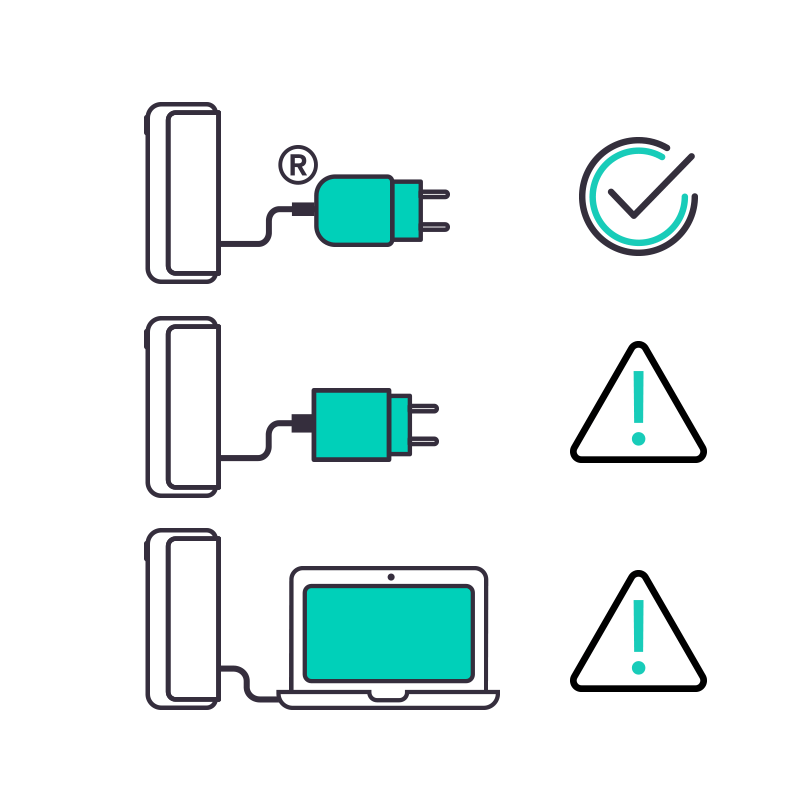
- Use official IQOS power adaptor and cable. Unofficial ones may interrupt the charging.
- Refrain from charging with a laptop. This may also interrupt the charging.
- Check and remove, if necessary, residues or dust that may interfere with the contacts between holder and pocket charger.
- Leave the Holder to charge for about 5 min or until the first holder light on the Pocket Charger turns solid white.
After these steps, did your holder start to be charged? If the issue continues, proceed to the next troubleshooting step below.
If your device is eligible, we will place a replacement order for you!
If the issue is resolved
Congratulations! We are happy that you can now continue enjoying IQOS.
- If you need any further support on your device, you can also visit our FAQs
- We are frequently introducing new product and accessories. See what's new by visiting our online store or at one of physical locations